
Every call you make or receive is in Inbox → Calls, grouped by day, with the candidate's name or the number, the time, the duration and a Missed badge where it applies. Filter with All, Missed and Mine, or search by name or number.
Call detail
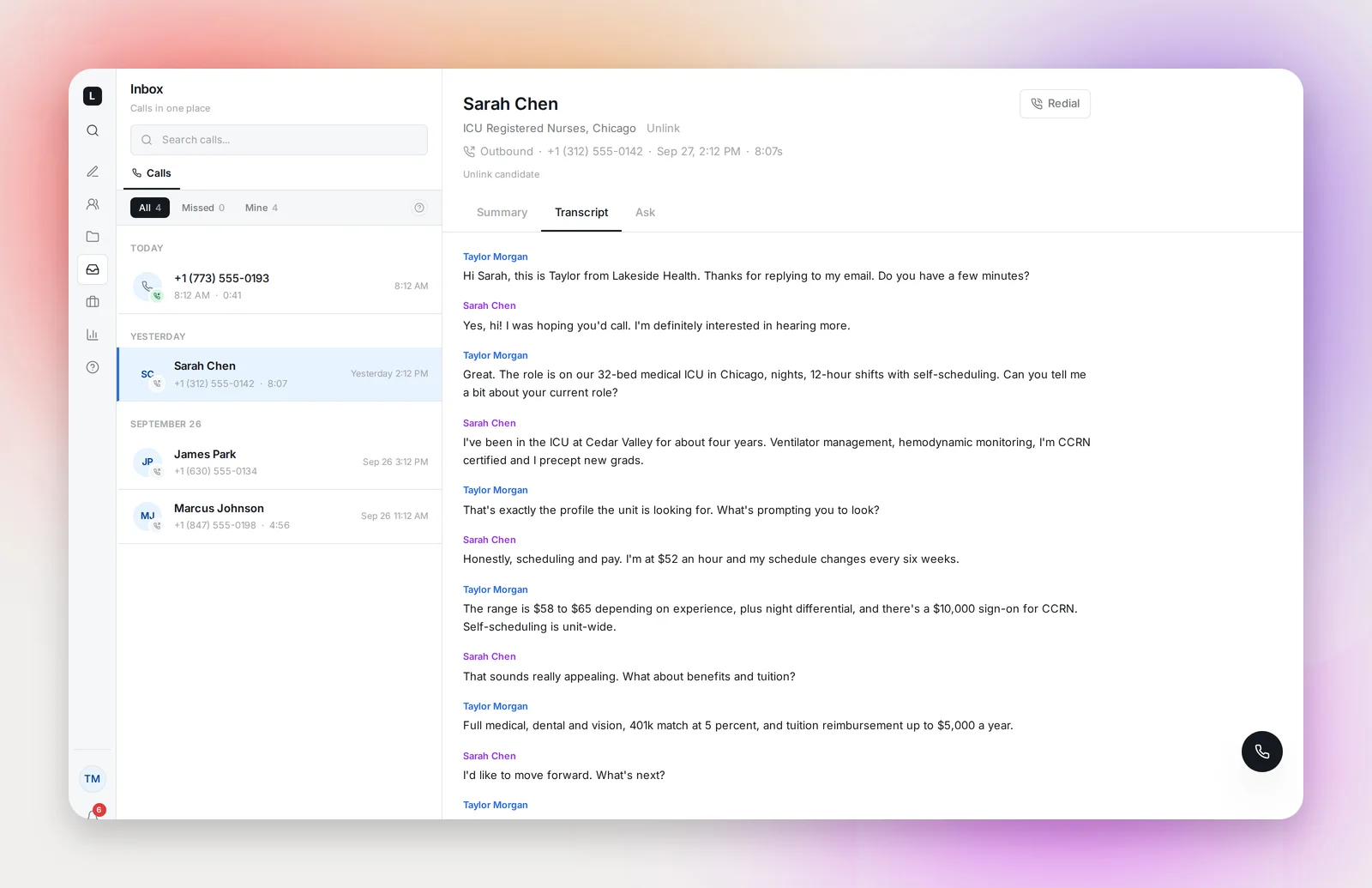
Click a call. The header shows direction, number, date, duration and the project, with three tabs:
- Summary: the AI summary (below)
- Transcript: the conversation, labelled Recruiter and Candidate
- Ask: ask a question about the call ("Did she mention a start date?") and get an answer based on the transcript
A call that isn't tied to a candidate shows Link to candidate; search your talent pool by name or email to attach it. Unlink reverses it. Linked calls appear in the candidate's Activity timeline.
What's in a summary
Generated automatically after each completed call, and ready within a minute; a Call summary ready notification tells you.
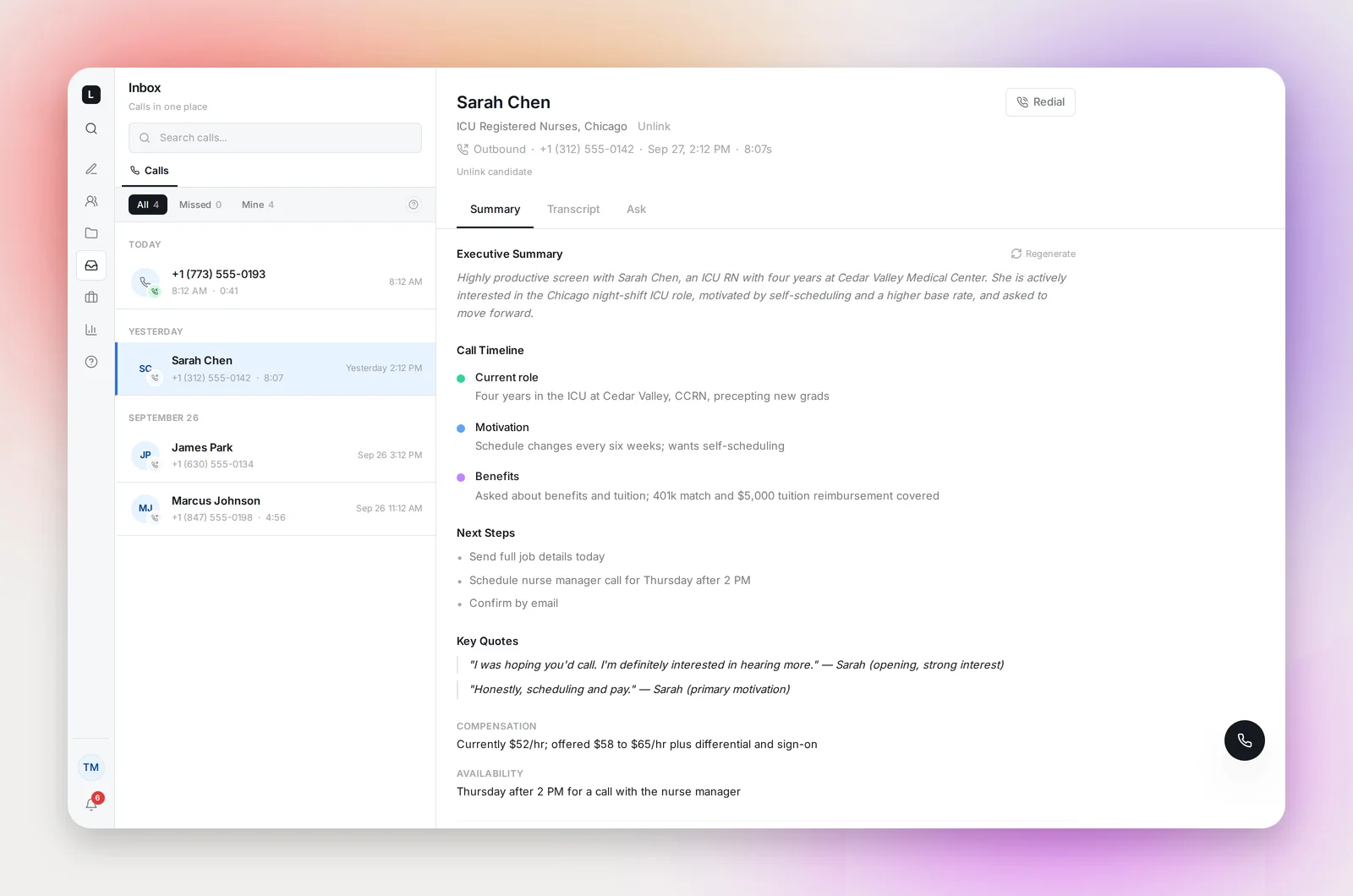
- Executive Summary, with a Regenerate button if you'd like another pass
- Call Timeline: the key topics in order, with detail
- Next Steps
- Key Quotes, in the candidate's words
- Compensation and Availability, when discussed
- Notes: points to clarify next time
- Sentiment (positive, neutral, negative, mixed) and Interest (high, medium, low, unclear)
What summaries emphasize is set for the whole workspace in Settings → Dialer → Call summaries.
Voicemails show a player and their transcript instead.
Frequently asked questions
The summary says it couldn't be generated.
Click Generate Summary to try again. Very short calls and calls with no usable audio don't produce a summary.
Can teammates see my calls?
Calls appear in the Inbox for your workspace; Mine filters to yours. A linked call is visible on the candidate to everyone.
Can I edit a summary?
No. Regenerate it, or add a note on the candidate with anything the summary missed.