
A hiring status is where a candidate stands in your process: Phone Screen, Onsite, Offer Extended, Hired. It's separate from outreach status (which tracks emails), and it's shared across every project in your workspace so the whole team reads the pipeline the same way.
The status list
Your workspace starts with six statuses: Phone Screen, Onsite, References, Offer Extended, Hired and Rejected. Manage them under Settings → Hiring statuses.
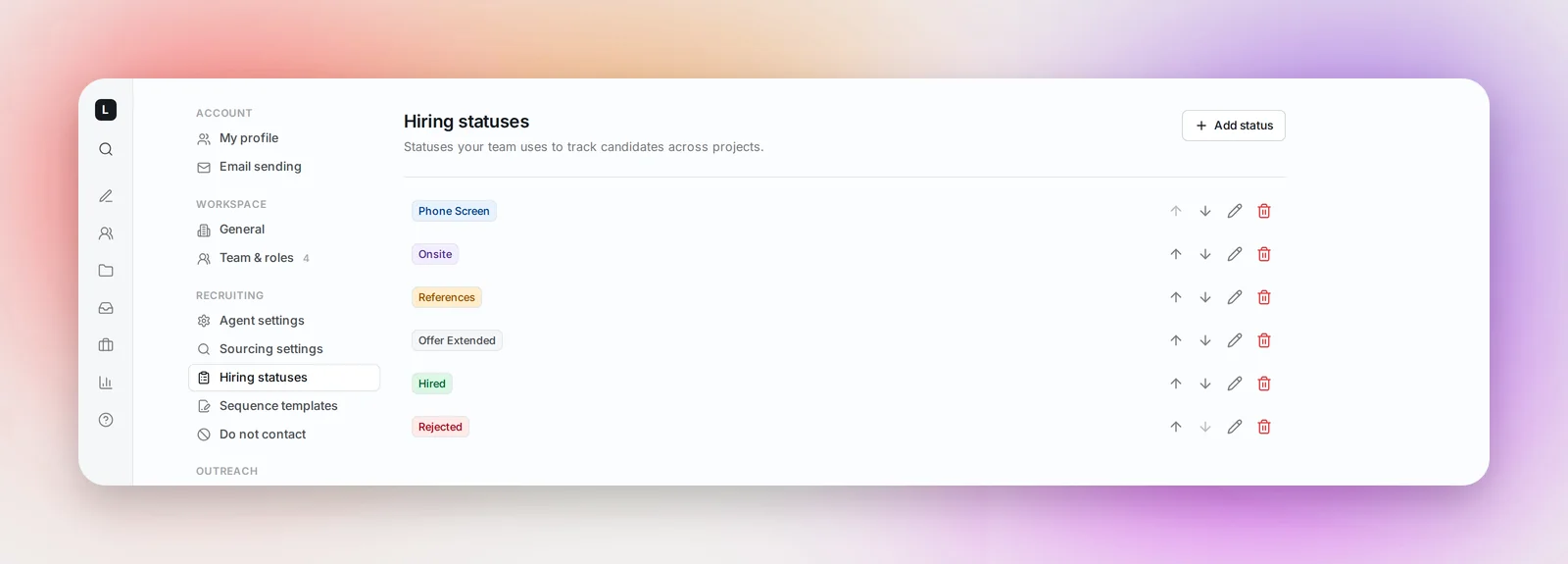
- Add status asks for a name and a color (Navy, Green, Amber, Red, Purple or Slate).
- The arrows reorder statuses; put them in the order your process runs.
- The pencil renames a status or changes its color.
- Delete removes a status. If candidates currently carry it you're asked to confirm, and their hiring status is cleared.
Assigning a status to a candidate
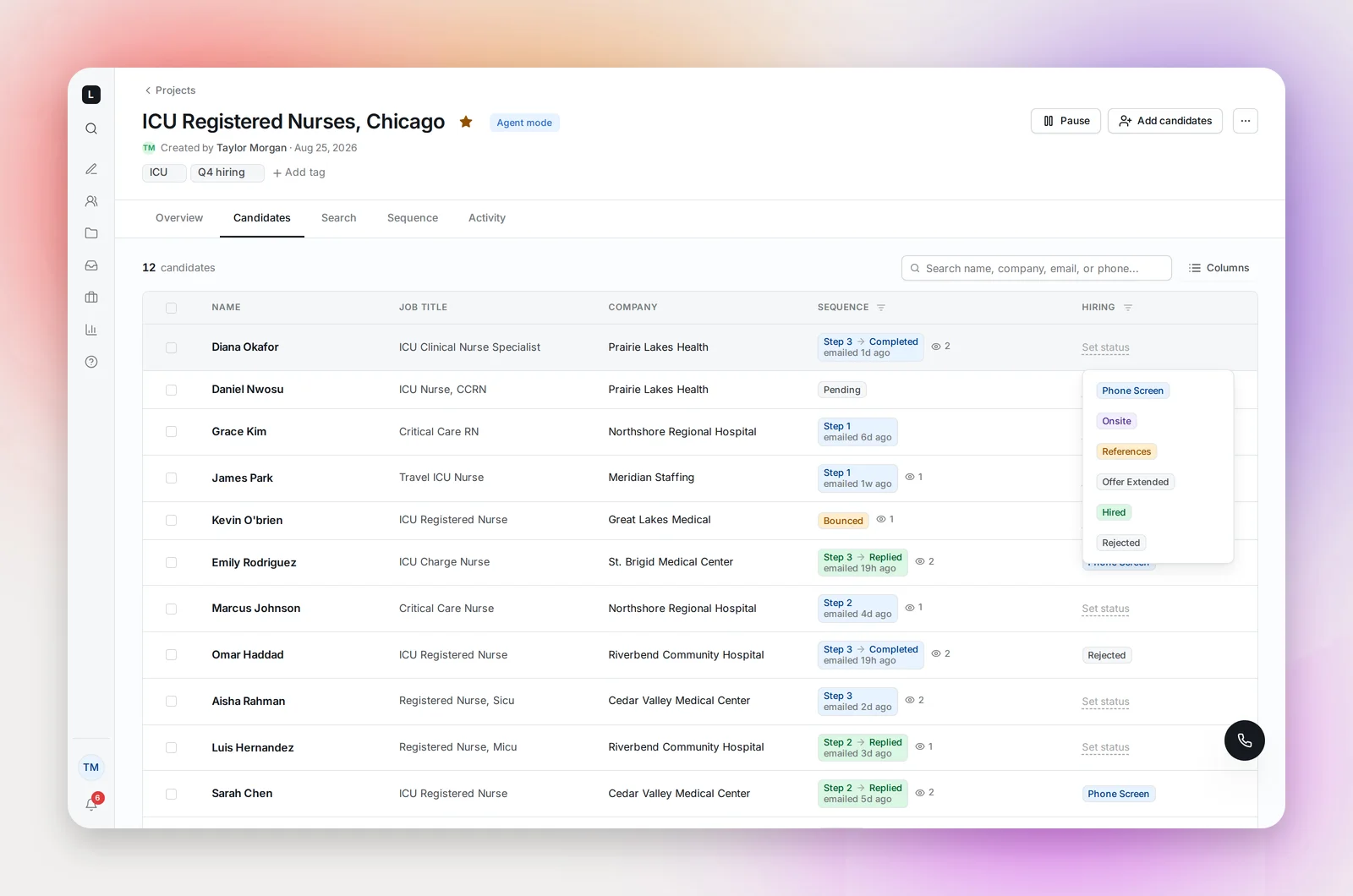
Open the candidate from the Candidates tab of a project and pick a status from the hiring status control at the top of their profile. The status shows in the Hiring column of the candidates table, where you can also filter by it, and "Clear status" removes it.
Frequently asked questions
Does a status change stop the email sequence?
No. Marking someone Hired or Rejected doesn't pause their outreach on its own. To end it, select their row on the Candidates tab and use Pause Sequence in the bulk bar.
Can I set a status for several candidates at once?
Yes. Select the rows and use the hiring status picker in the bulk bar.