
The Candidates tab lists everyone in the project with their place in the sequence and their hiring status. A dot on the tab means supervised candidates are waiting for you.
The table
Search by name, company, email, phone or location. Columns adds Email address, Phone number and Location to the defaults (Job title and Company). Name, Sequence and Hiring are always shown. The Sequence filter narrows to one or more outreach statuses, with a checkbox per status and Clear filters to reset:
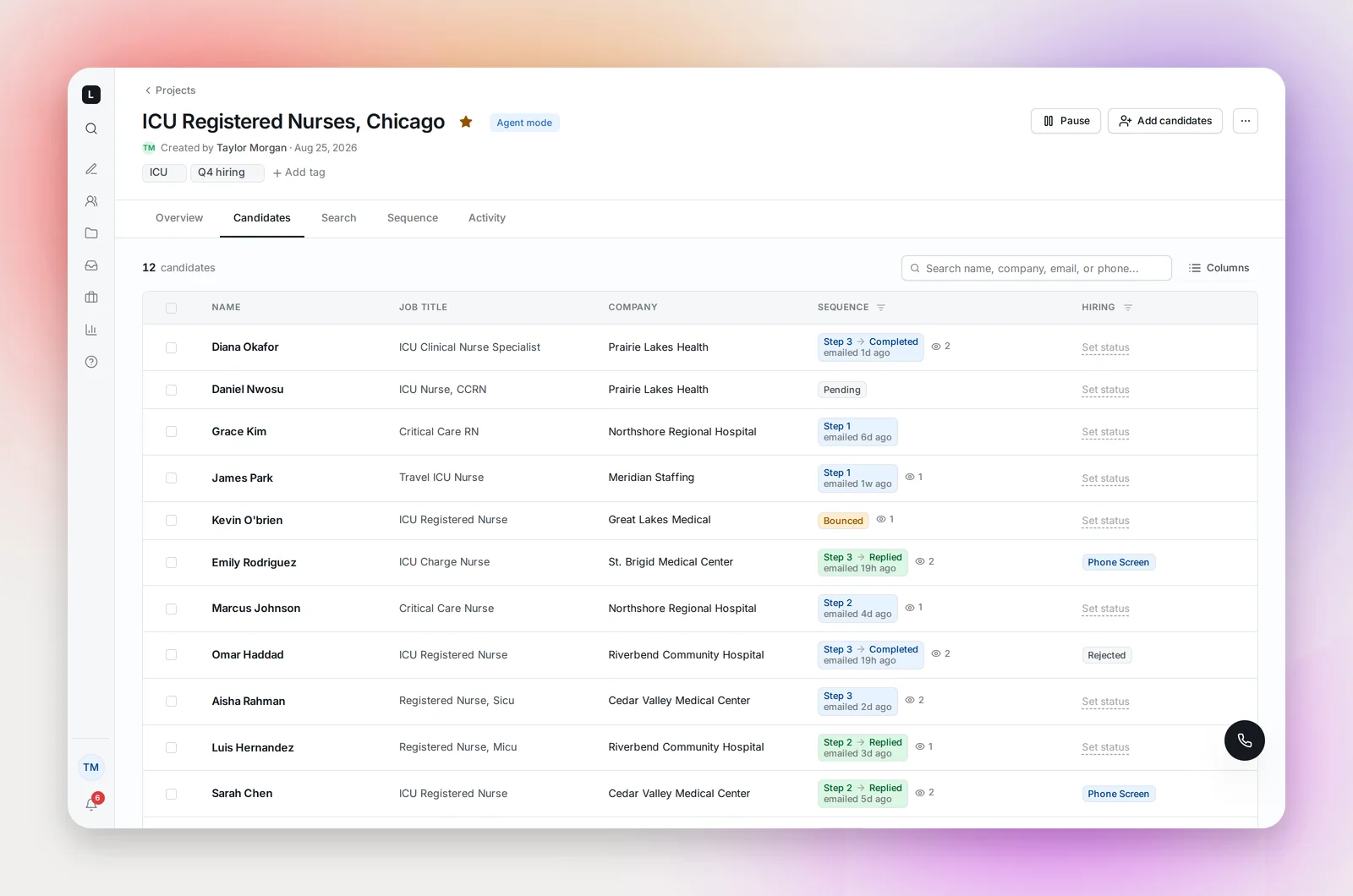
- Needs Review: awaiting your approval (supervised projects)
- Pending: waiting to be contacted. Hover the ⓘ to see why: the next send window, or on hold while another project's sequence or your cool-off period runs. See The Cool-off Period Between Sequences.
- Messaged: sequence in progress; the chip shows the step, for example "Step 1 → Step 2"
- Completed: all steps sent
- Opened, Replied: engagement with the sequence
- Paused: outreach paused by you
- No valid email: waiting on a working address
- Bounced: delivery failed
- DNC, Unsubscribed, Skipped · current employee: blocked by your Do Not Contact list, an opt-out, or because the candidate lists your organization as their employer
The eye icon shows how many times each step was opened. Set a hiring status from the Hiring column ("Set status"). See Hiring Statuses.
Supervised review
In a supervised project, open a Needs Review candidate and use Approve or Reject at the top of the drawer. Approving queues their outreach. When the queue is empty you'll see "All caught up", with the option to switch the project to full agent mode.
The profile drawer
Click a row. Arrows move to the previous and next candidate.
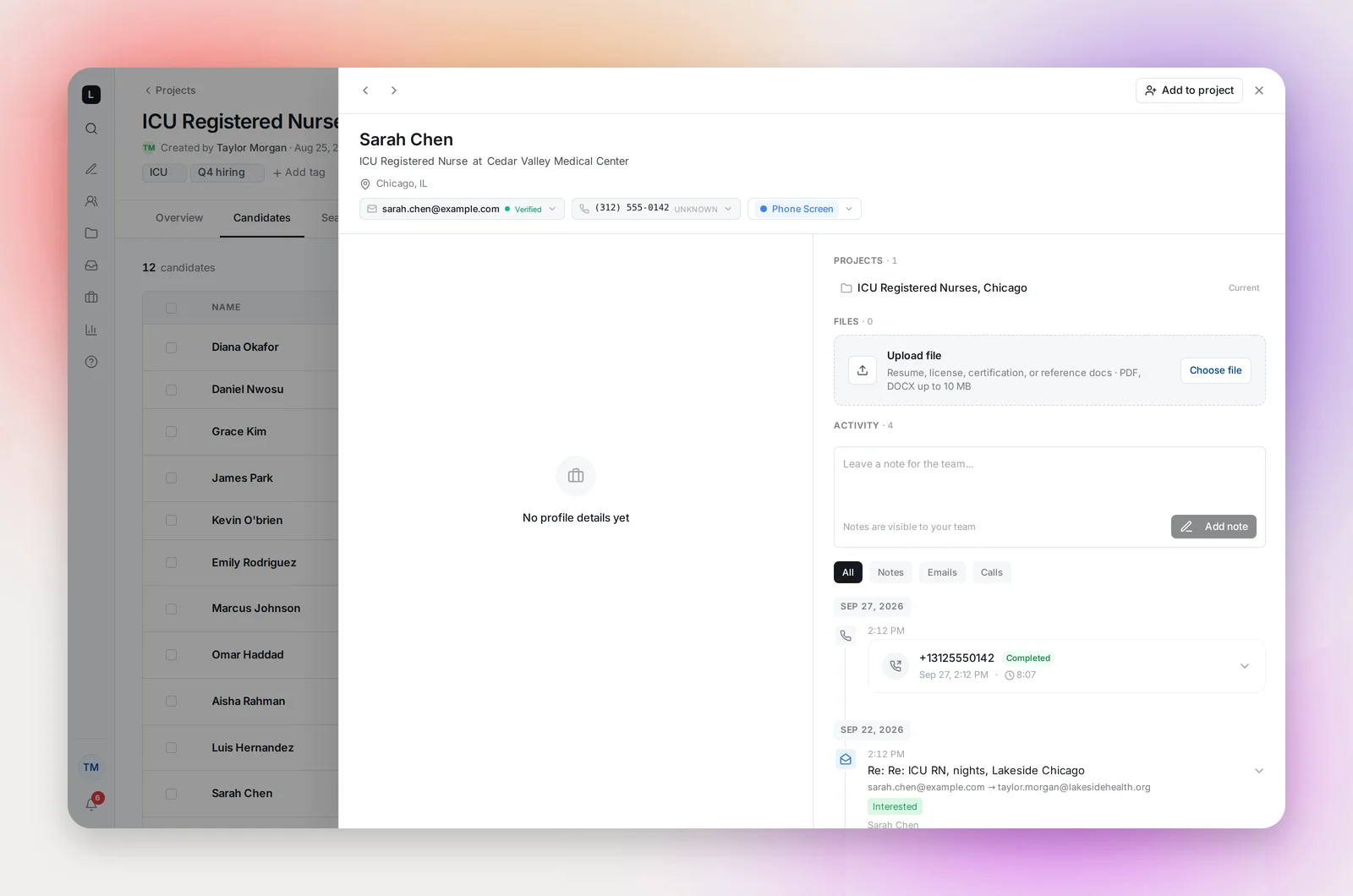
- Contact details: emails with their type and verification status and a Use for outreach choice; phones with Call and Text actions and a Make primary option. Add, edit or remove either.
- Current title, company and location are editable.
- Profile: summary, experience, education, skills, licenses, certifications and languages. ATS candidates show the requisition they applied to; see Running a Talent Rediscovery Project.
- Projects and Jobs applied to.
- Files: resume, license, certification or reference documents, PDF or DOCX up to 10 MB.
- Notes: visible to your whole team.
- Activity: notes, emails and calls in one timeline, with reply tags such as Interested, Not Interested and Out of Office.
Bulk actions
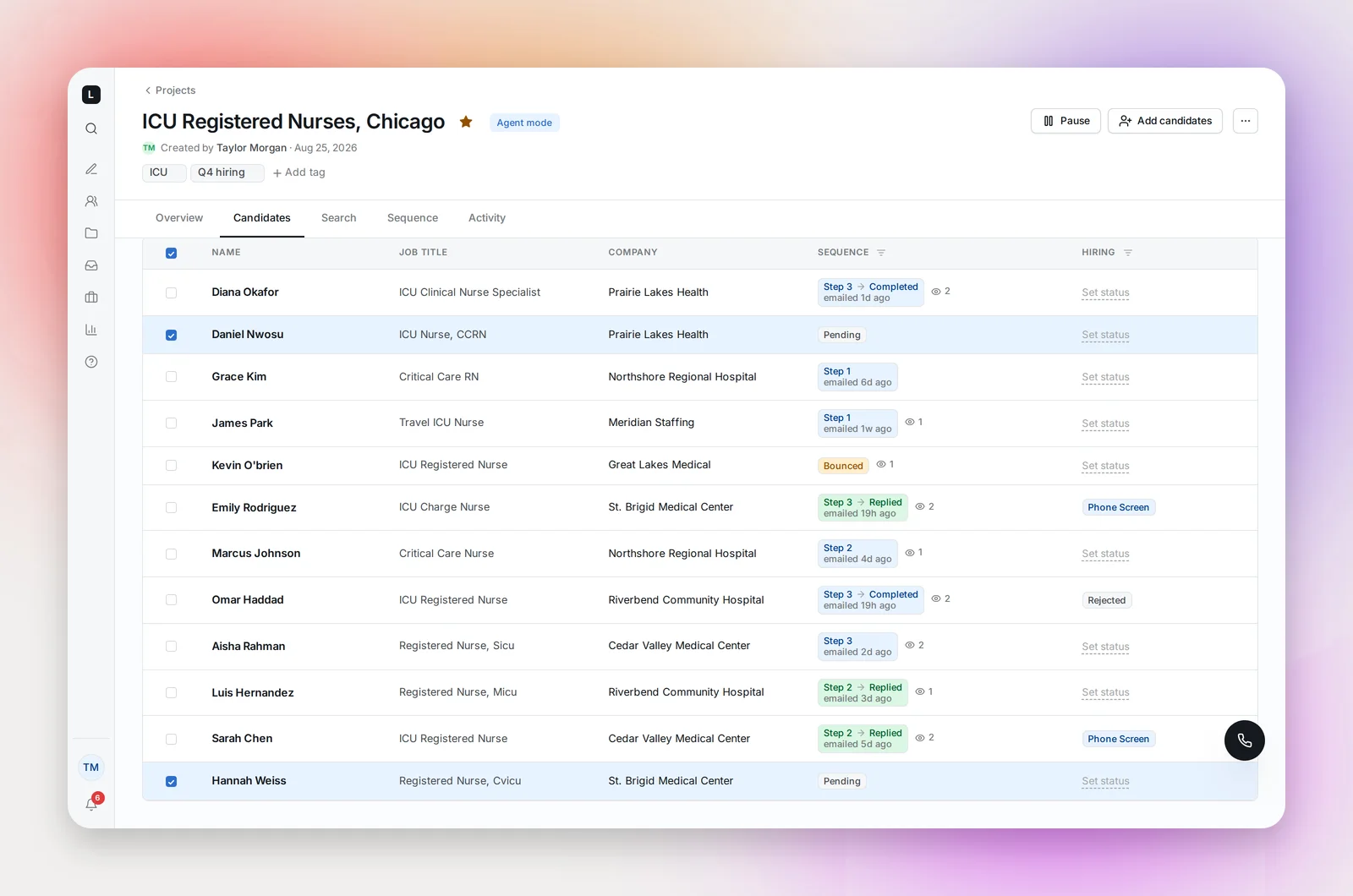
Select rows to get Send First Step (after launch), Pause Sequence, Resume Sequence, Move to Project, Copy to Project, a hiring status picker, and Remove. Removing takes the candidates out of any active sequence in this project. Copying keeps them here too, with activity visible from both projects.
Frequently asked questions
Why is a candidate "Skipped · current employee"?
Their profile lists your organization, or one of its aliases, as their current employer. In a manual project you can Unblock outreach and record why; see Workspace Settings for aliases.
Why does a name show without the RN or Dr.?
Credentials and honorifics at the start or end of a name are left out of the displayed name and the email greeting, so "Jane Doe RN" shows as "Jane Doe" and the email opens "Hi Jane,". Candidates from your ATS keep their names exactly as your ATS records them.
A candidate has two emails. Which one is used?
The one marked for outreach. Choose it with Use for outreach; flagged or unverified addresses can be used anyway if you trust them.
Can I email a candidate outside the sequence?
Replies go through your own mailbox. Use Send First Step to put a candidate into the sequence, or write to them directly from your inbox.