
Team & roles, under Workspace in Settings, lists every member of your organization with their role and team. The heading tells you how many members and teams you have.
Roles
There are two roles:
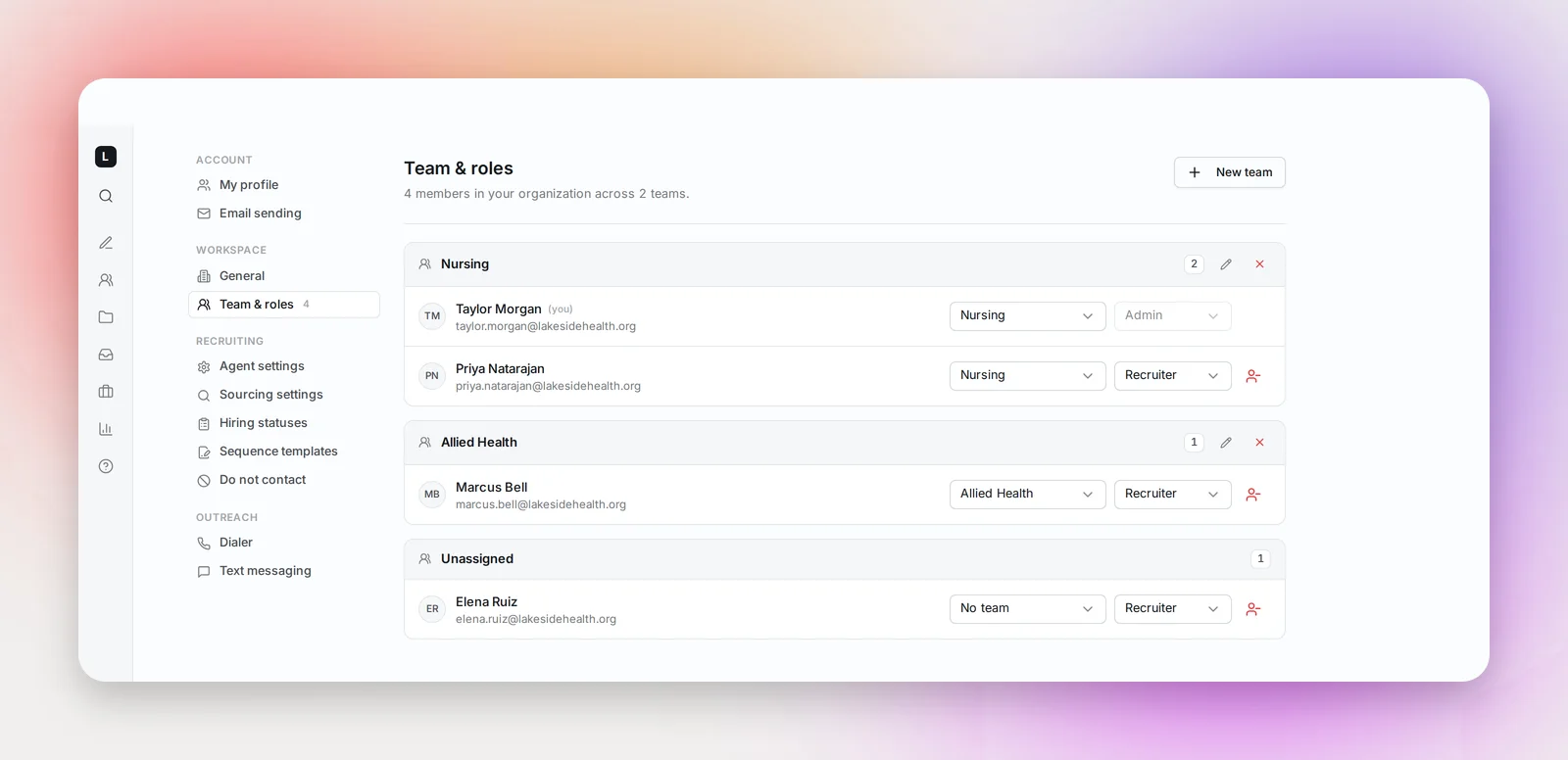
- Recruiter: runs their own projects, outreach, calls and jobs. Sees everyone's role and team, but can't change them.
- Admin: everything a Recruiter can do, plus workspace-level settings: roles and teams, removing members, the Do Not Contact list, the sending delay, the email logo and organization aliases, adding hiring statuses, and the Insights dashboard.
New members start as Recruiters. An Admin can change anyone's role from the dropdown on their row, except their own.
Teams
Teams group recruiters by specialty, region or client, and Insights can be filtered by team.
- New team (Admins) creates one; then assign people from the team dropdown on each member's row, which also offers "+ New team...".
- The pencil renames a team in place.
- The × deletes a team straight away and leaves its members unassigned. There is no confirmation step, so check the name first.
Until you create a team, everyone is listed together under "All members".
Removing a member
Admins remove a member with the person-minus icon on their row. The dialog does two things at once:
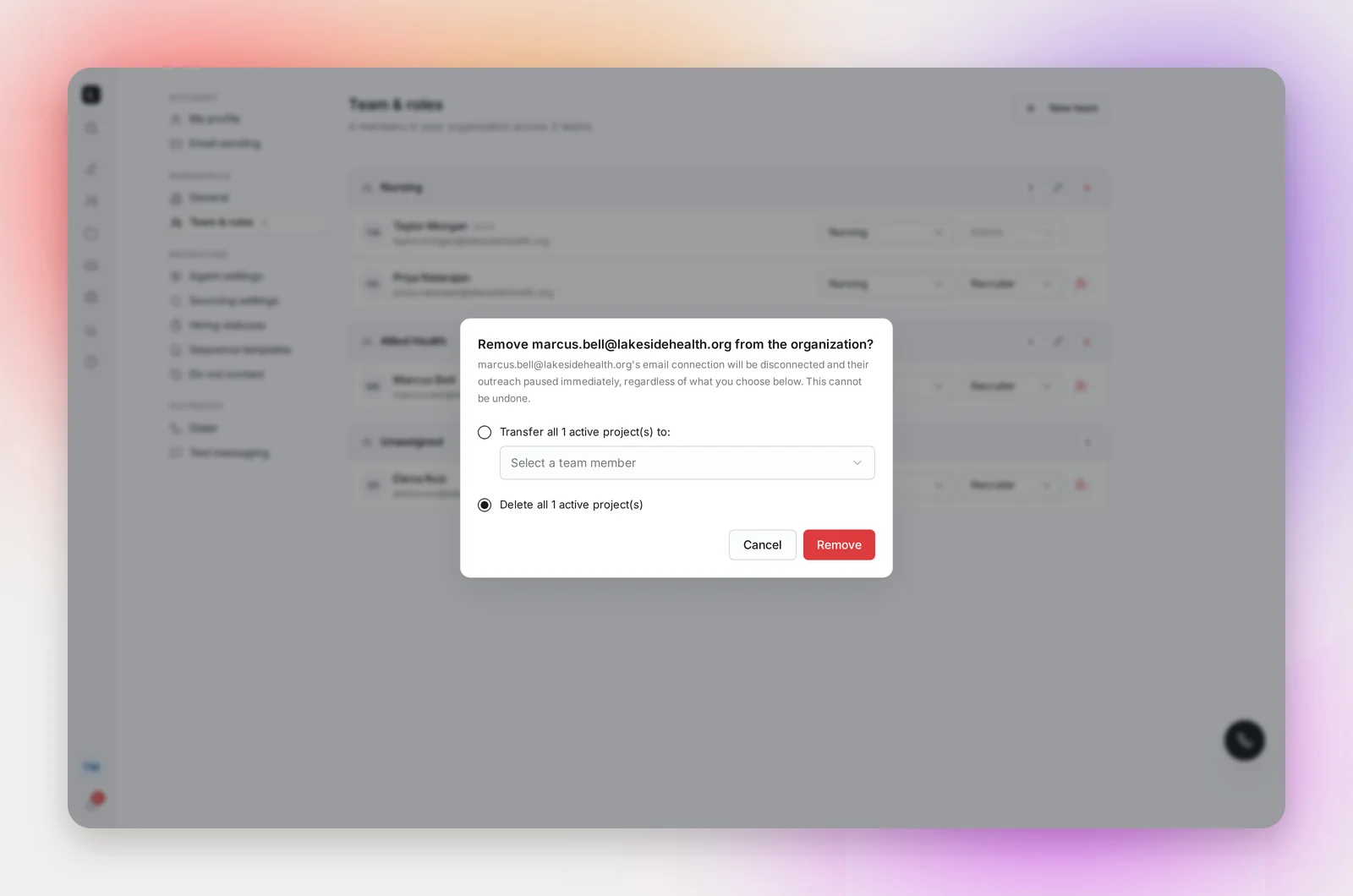
- Their email connections are disconnected and their outreach paused immediately, whatever you choose next. This can't be undone.
- You choose what happens to their active projects: Transfer all to a team member you pick from the list, or Delete all (the default).
Transferred projects land paused under the new owner, because they'll send from the new owner's mailbox and should be reviewed before they resume. The confirmation shows how many projects were transferred or deleted and how many connections were disconnected.
You can't remove yourself, and the last remaining Admin can't be removed.
Frequently asked questions
How do I add someone to the workspace?
Arrange their seat with your Betterleap account manager, then ask them to sign in at ai.betterleap.com/login with their work email. No invitation email is needed; they land in the workspace as a Recruiter. See Signing In and Joining Your Workspace.
Can a project be shared between two recruiters?
Every project has one owner, and outreach sends from that owner's mailbox. Other members of the workspace can open the project from the Projects page, review candidates and add notes.
Does removing someone delete their candidates or call history?
No. Deleted projects are archived, not erased, and can be restored from the Projects page. Calls and notes stay attached to the candidates.
Can we have more than one Admin?
Yes, as many as you like. We recommend at least two.