
Every project starts on the home screen with one sentence.
Describe who you need
In the box under "How can I help you today?", write the role the way you'd brief a colleague: title, location, experience, licenses and anything that matters. Two examples that work well:
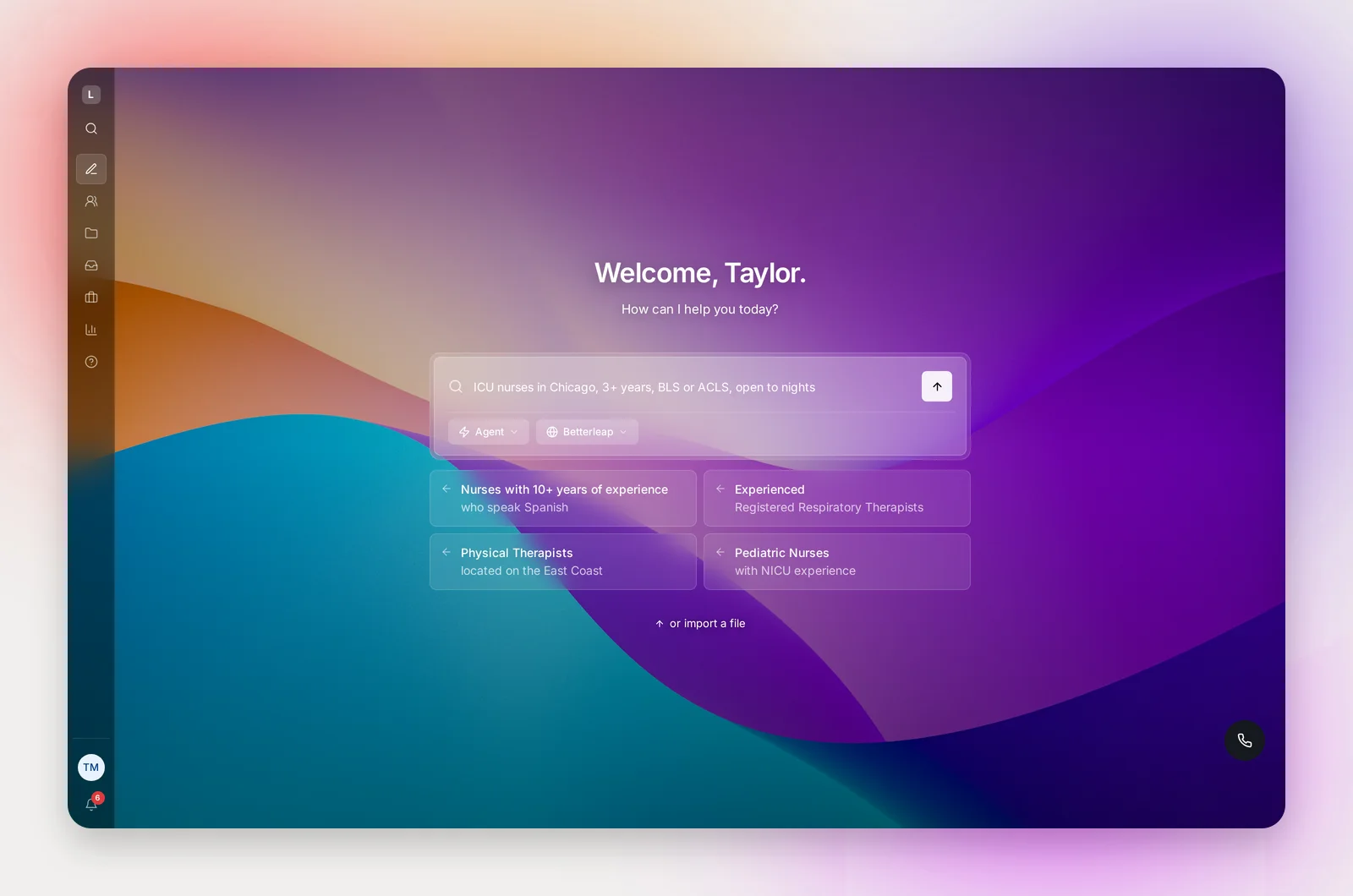
- "Registered nurses with CCRN in the Bay Area, 3+ years ICU"
- "Physical therapists in Texas who speak Spanish, open to home health"
The more specific, the better the candidates. Press Enter or click the arrow. The suggestion cards below the box start a project with one click if you'd rather try an example first.
Choose Agent or Manual
The dropdown under the box sets how the project runs:
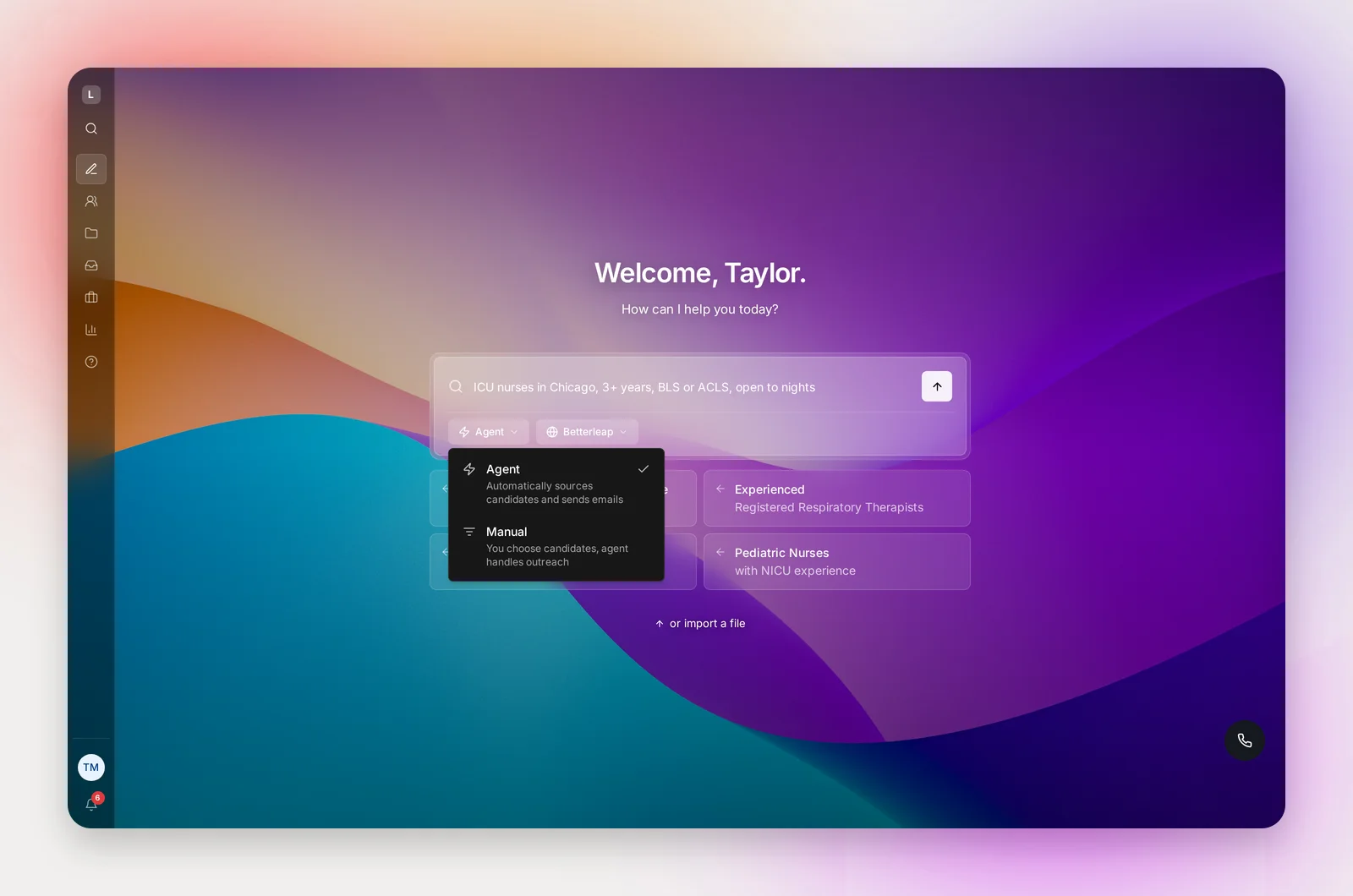
- Agent (default): "Automatically sources candidates and sends emails." The agent finds candidates for you and runs the outreach.
- Manual: "You choose candidates, agent handles outreach." You pick people in Search and the agent sends the sequence to them.
Which one to pick:
| Manual | Agent | |
|---|---|---|
| Who finds candidates | You do, in Search, one at a time or from a file you import | The agent, continuously, from your search instructions |
| The sequence | You write it, or apply one of your team's templates | Written for you; edit as much or as little as you like |
| Who gets contacted | Only the people you add | Everyone who matches, or, in Supervised mode, everyone you approve |
| Reach | A hand-picked shortlist | Every matching professional across a city, a region or a whole state |
| Best for | A few specific targets, referrals, a list you already have, roles where you want to vet each person first | High-volume or hard-to-fill roles, new markets, anything where the pool is bigger than you could work by hand |
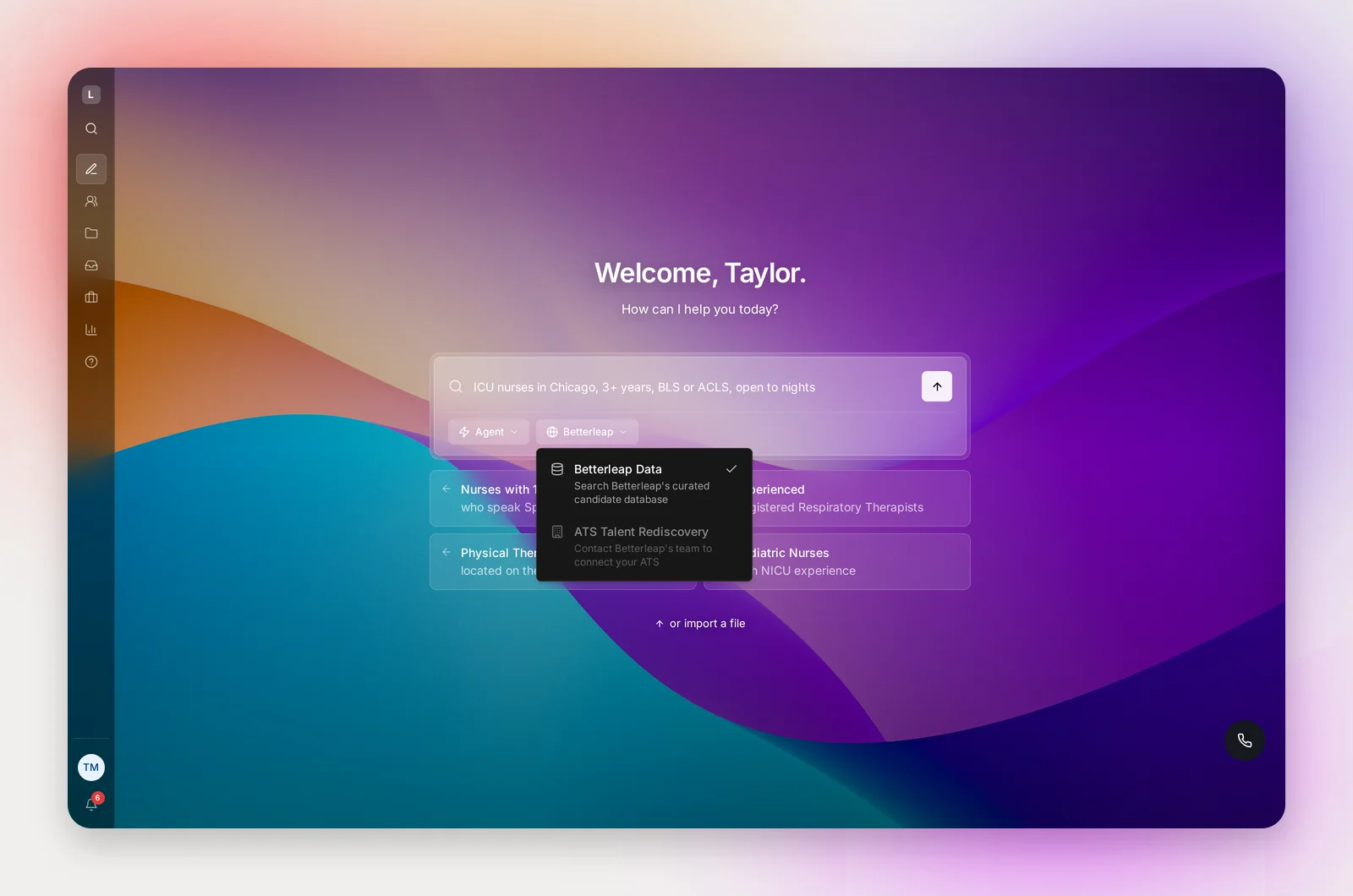
Next to it, the data-source menu chooses where candidates come from: Betterleap Data, ATS Talent Rediscovery when your ATS is connected, and any partner sources your workspace has. Betterleap is selected by default; pick several to blend them.
What happens next: Agent
You land on the new project's Search tab while it searches ("Searching millions of candidate profiles…"). In a minute you'll see a preview of matching candidates and the Search Instructions the agent derived from your prompt. Refine them, for example "Must have NICU experience", until the preview looks right. Meanwhile the Sequence tab writes your emails.
This is the project's one search. You shape it with the agent, launch, and from then on the agent sources and sends. See Agent Projects.
What happens next: Manual
You land on the project's Search tab, with your prompt saved as its first search. Click New to run more searches inside the project and add people from the results, or import a file. When the search box has text, the X at its right end clears it. Build the sequence yourself on the Sequence tab, or apply a template, then Launch. See Manual Projects.
Frequently asked questions
Can I change the search after launching?
In an Agent project, the way to change it is the Search Instructions on the Search tab: edit them at any time and they apply to future sourcing, while candidates already in the project stay until you remove or reject them. In a Manual project the question doesn't really arise: you're searching and adding candidates yourself, so run a different search whenever you like.
Can I switch a project from Agent to Manual?
No. Start a new project in the other mode; you can move or copy candidates across from the Candidates tab.
How many candidates will I get?
It depends on how specific the prompt is. The preview shows the size of the matching pool so you can widen or narrow before you launch.
I have a spreadsheet of candidates already.
Click "or import a file" under the suggestion cards. See Importing Candidates from a File.