
The Sequence tab holds the emails a project sends: an initial message and its follow-ups, with the timing between them. When a project is created the agent writes a first draft for you ("Agent is crafting personalized outreach emails"); everything in it is editable.
Steps
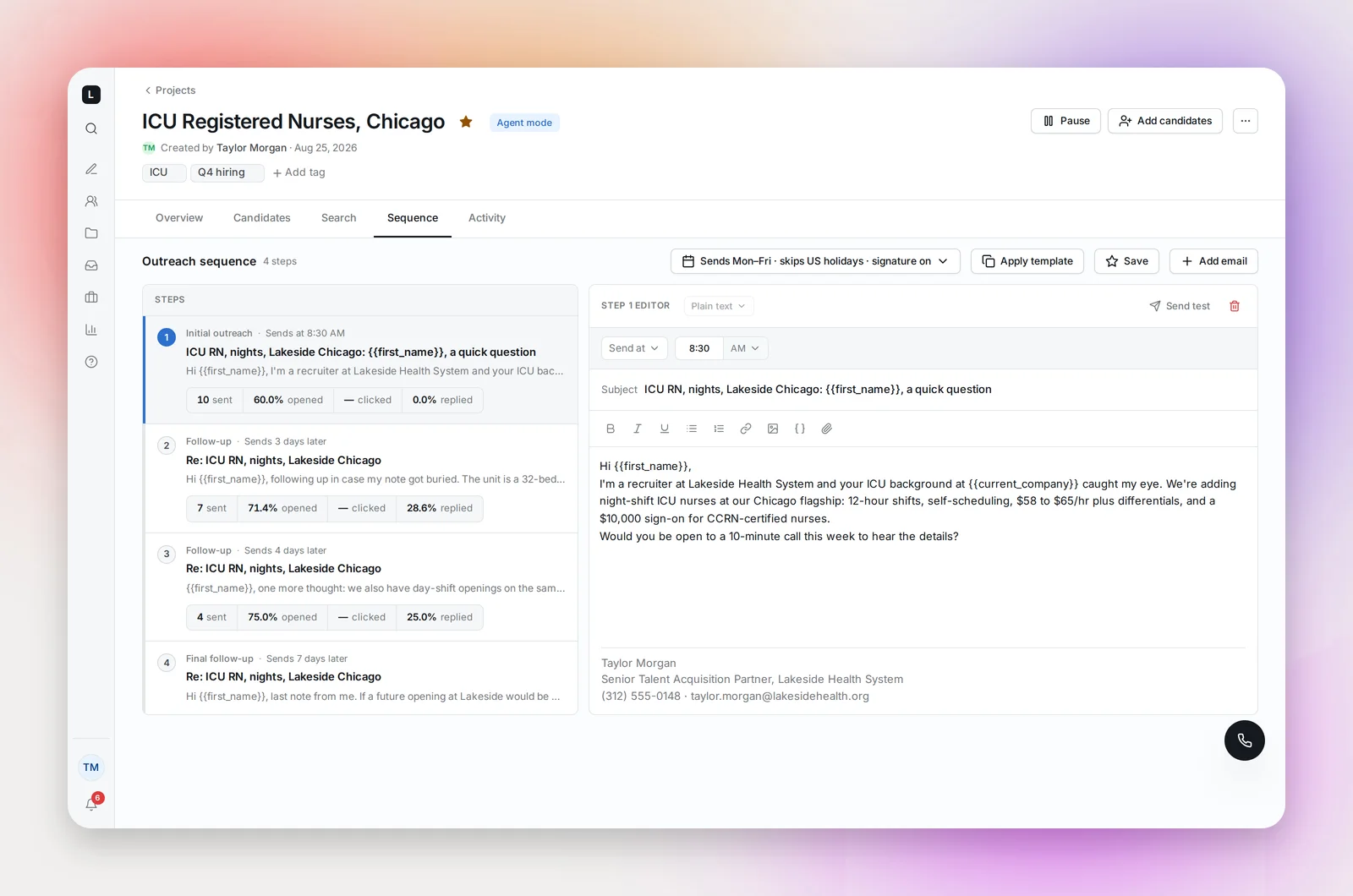
Steps are labelled Initial outreach, Follow-up and Final follow-up. Add email appends a step; the delete button in a step's editor removes it. Each step has a Subject and a body, and once the project has sent, the step shows its own stats: sent, opened, clicked, replied.
Timing
- Step 1 has three options in its Send menu: Send at a set time (a time of day, for example 8:30 AM), Send immediately (as soon as a candidate enters the sequence), or Send on a future date (every first email waits for a day you pick; see Sending a Sequence on a Future Date).
- Later steps send "In N Calendar Days" or "Business Days" after the previous one, at a time you choose. The minimum is one day.
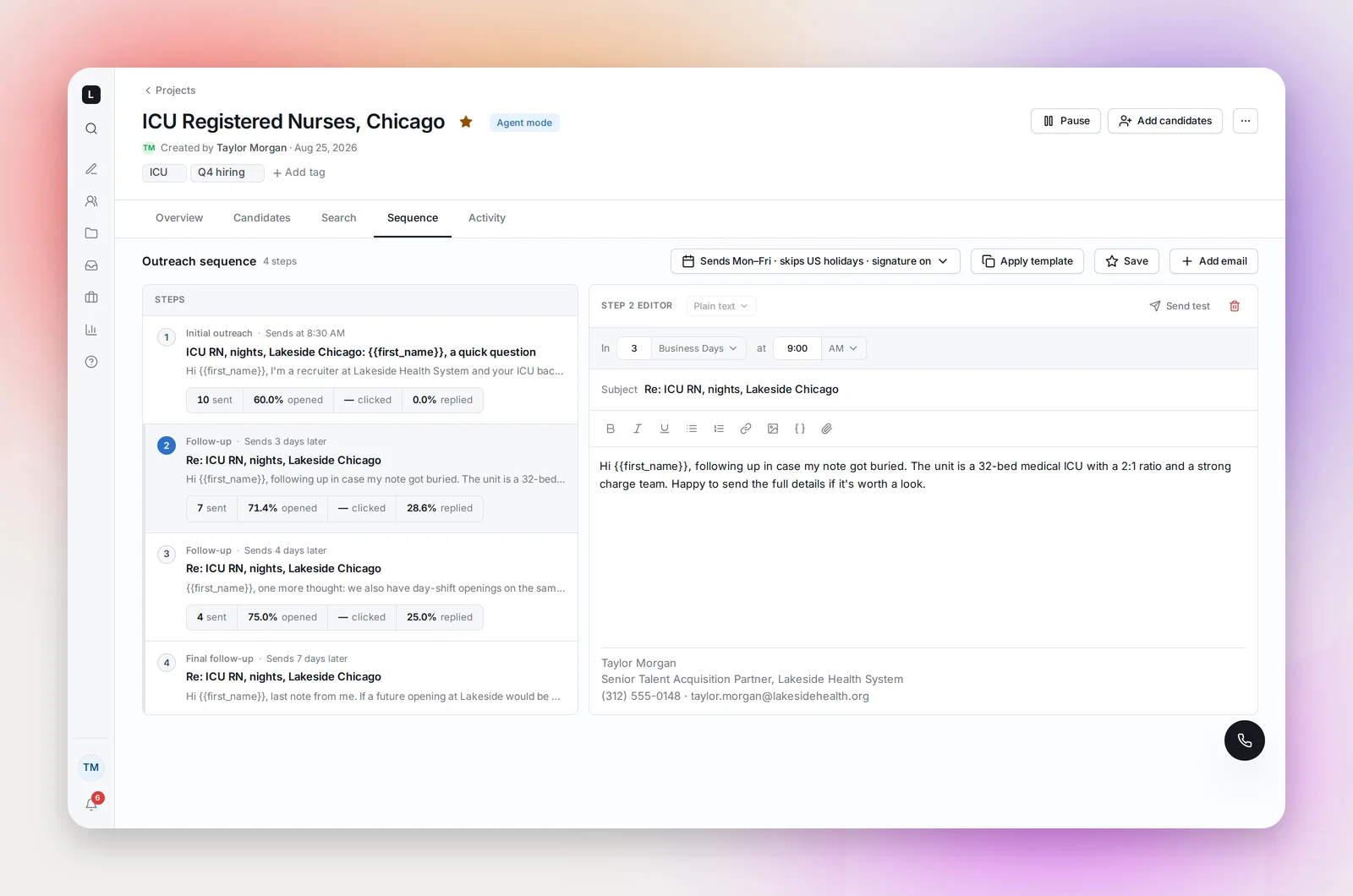
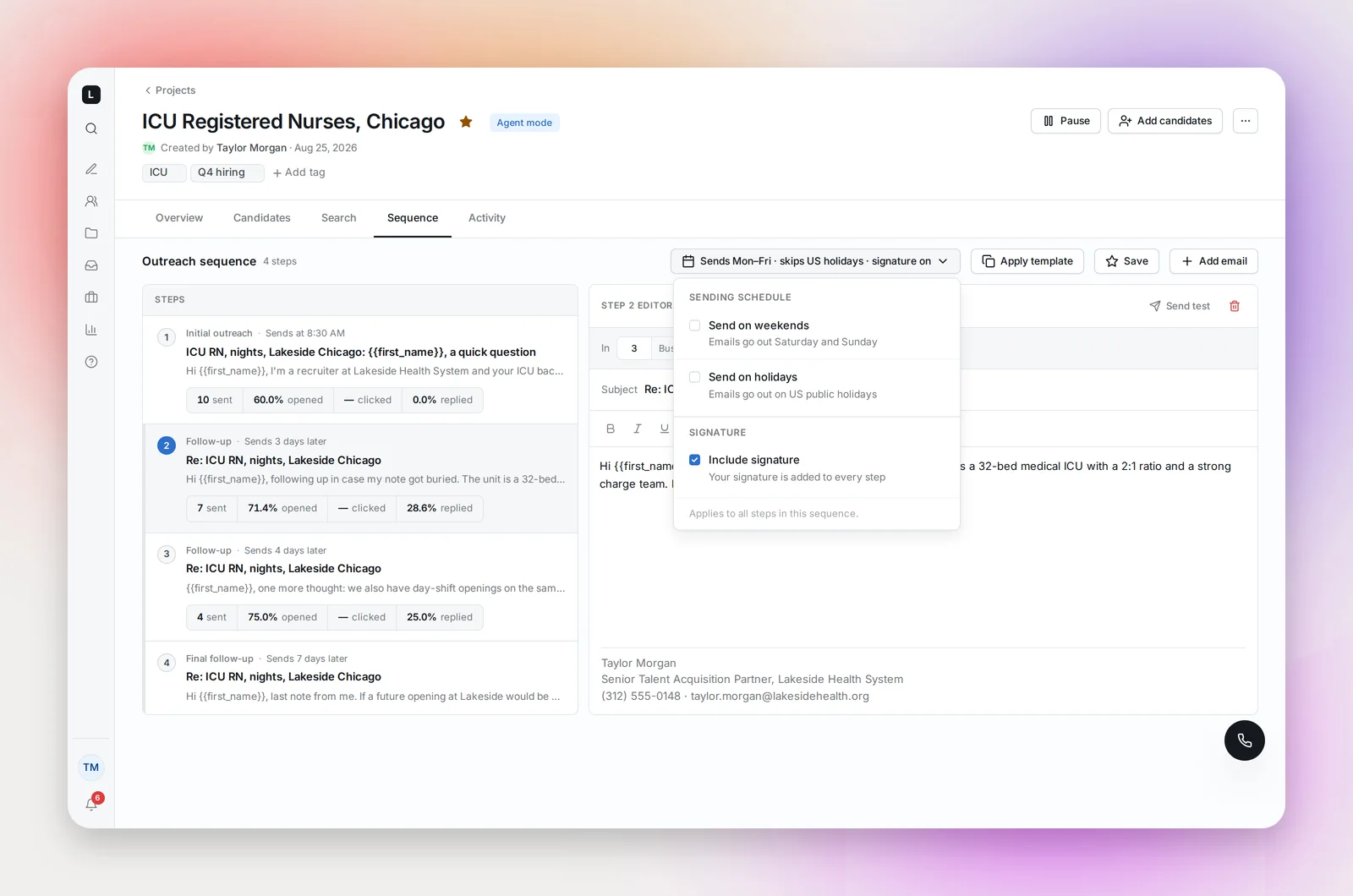
"At a set time" means the next occurrence of that time: a candidate added after today's send time gets step 1 at the next day's send time, not right away. Times are in the project owner's time zone (Settings → My profile). The settings button in the toolbar summarizes the rules and opens three switches:
- Send on weekends (off by default)
- Send on holidays, meaning US public holidays (off by default)
- Include signature (on by default): your signature from Settings is added to every step
Formats, attachments and variables
- Format: Plain text, HTML, or HTML blocks, chosen per step. The format is locked once the project has launched. See Plain Text, HTML and HTML Blocks for which to use when.
- Attachments: up to 5 files per step, 2.5 MB each, 5 MB per step, so they send cleanly through Gmail and Outlook.
- Insert variable drops in the candidate's or your own details. See Personalization Variables.
- Send test emails the step to you (below).
Send yourself a test
Send test in the step editor sends that step to your own address, from your connected mailbox, with your signature and the automatic unsubscribe line, exactly as a candidate would receive it. The subject gets a "[TEST]" prefix; the candidate name variables are filled with your own name, and job title and company with sample values, so you can see how "Hi {{first_name}}" reads. Send one whenever you change a subject line, switch formats or add an attachment. A test is a real send from your mailbox but doesn't count against your daily limit or the project's metrics.
Templates
Apply template replaces the current steps with one of your workspace's templates (you're asked to confirm, since it overwrites what's there). Save stores the current sequence as a template for everyone. See Sequence Templates.
Frequently asked questions
Can I edit the sequence after launching?
Yes. Subjects, bodies and timing can change any time and apply to steps not yet sent. The format can't change after launch, and a launched HTML blocks step's layout is locked (see Building an Email with HTML Blocks).
What happens to a candidate who replies mid-sequence?
Their remaining steps are paused automatically. See Replies, Bounces and Auto-Pausing.
Where is the unsubscribe link?
Added to every step when it sends (HTML blocks steps preview it at the bottom of the canvas). It can't be removed. See Unsubscribes and Opt-Outs.
Can two steps go on the same day?
No. The shortest delay between steps is one day.
Why hasn't step 1 gone to some candidates?
They may be in another project's active sequence, or in its cool-off period. Their status stays Pending; hover the info icon next to it to see which project is holding them and until when. See The Cool-off Period Between Sequences.