
HTML blocks turns a sequence step into a designed email: an optional logo header band, a hero banner, text, images, two-column layouts and a button, arranged in a 600-pixel card that renders cleanly in every mail client. No code, no designer.
The logo (optional)
The header band shows your organization's email logo. It's optional: with no logo set, the email simply starts with your first block, and Admins see a reminder above the canvas with a link to add one. An Admin uploads it under Settings → General (under Workspace) → Email logo (PNG, JPEG, GIF or WebP, up to 1 MB). See Workspace Settings.
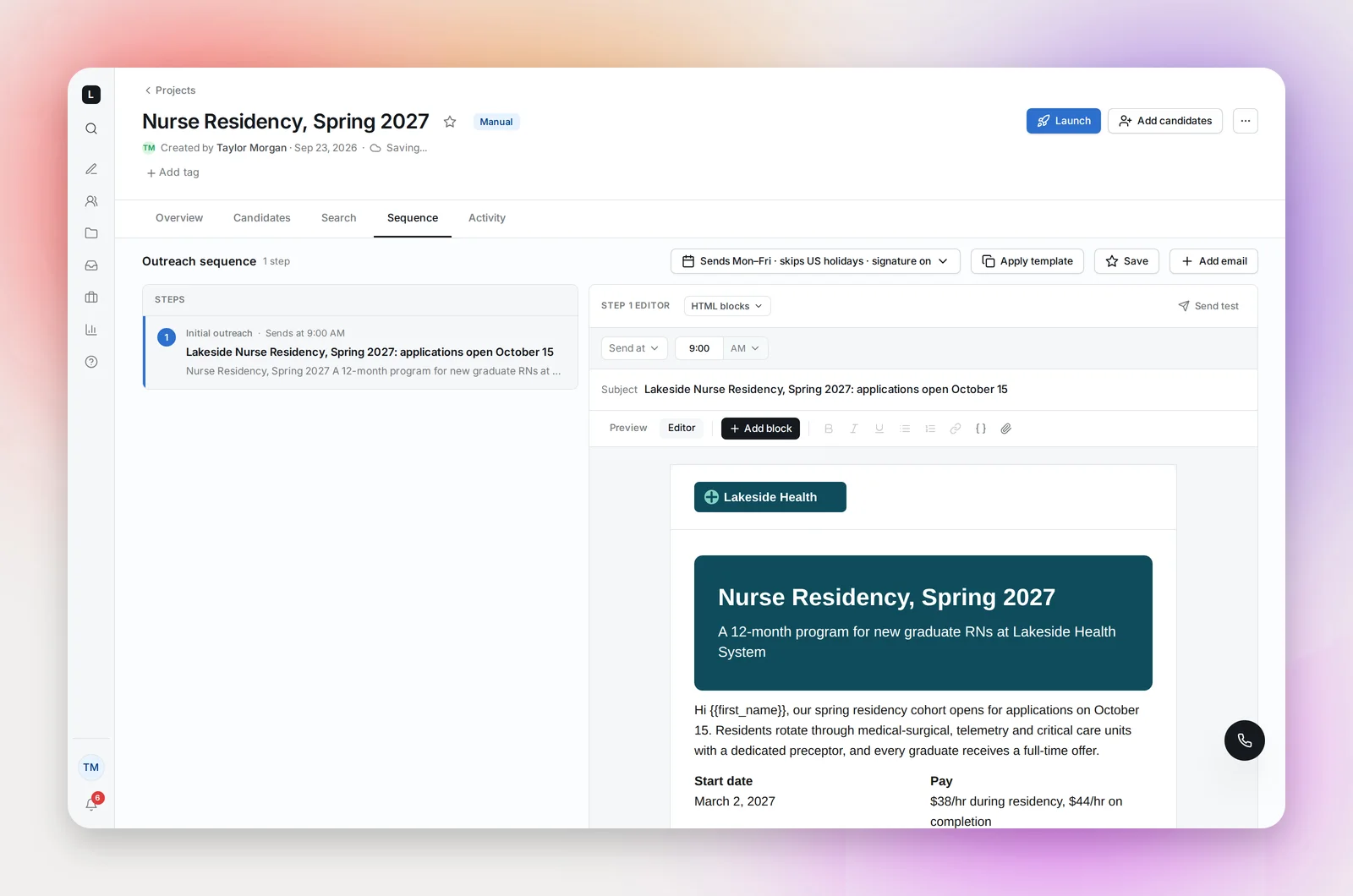
Switching a step to HTML blocks
In the step editor, open the format dropdown and choose HTML blocks. Whatever the step already contains is turned into blocks: paragraphs become Text blocks, headings become Heading blocks, images become Image blocks. From here the editor has two views, Preview (the finished email) and Editor (the same email with the editing controls), plus a toolbar: + Add block, Bold, Italic, Underline, lists, Link, Insert variable and Attach file.
The blocks
Add block inserts after the selected block, or at the end.
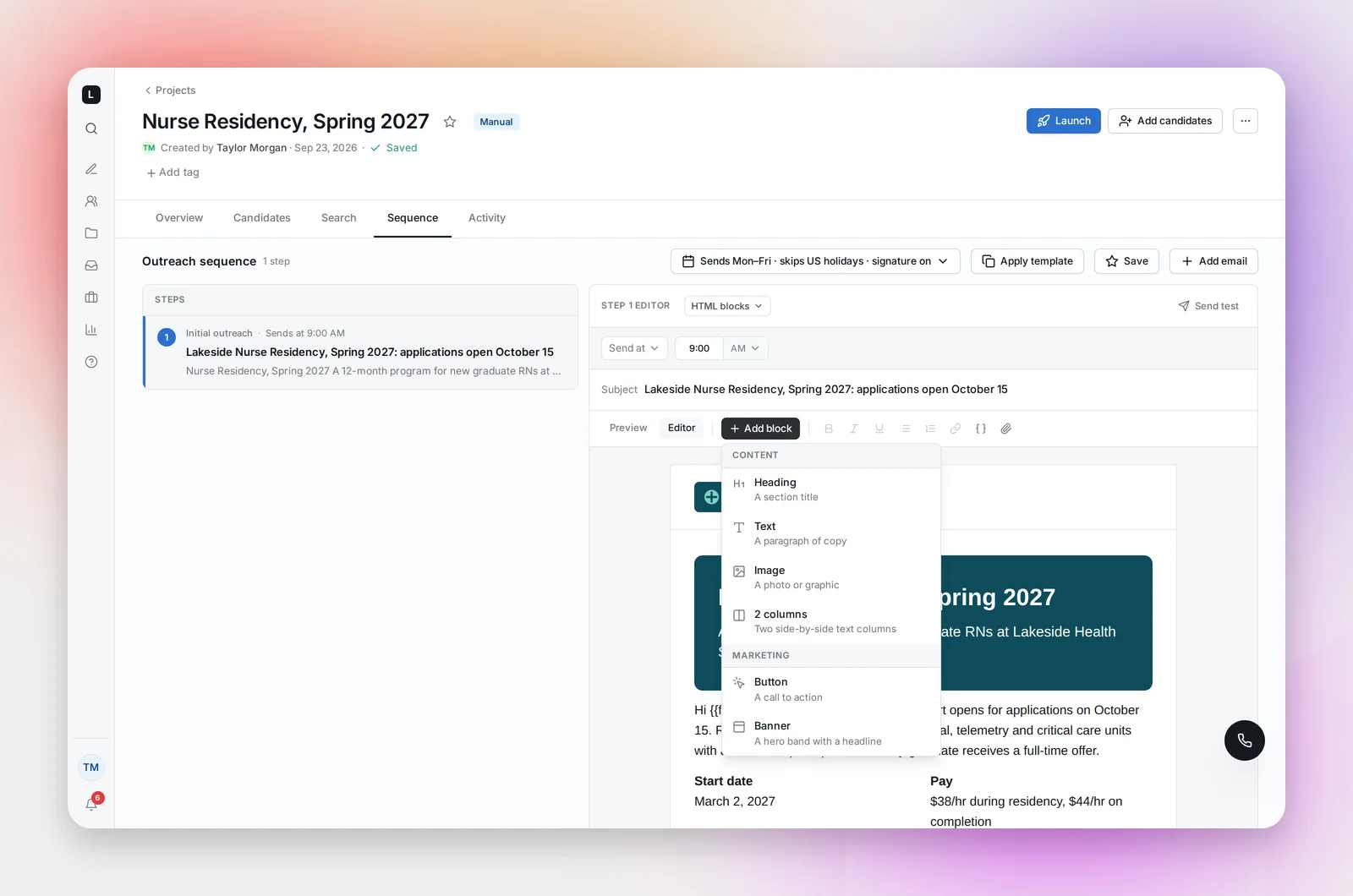
Content:
- Heading: a section title. Bold, italic, underline and links.
- Text: a paragraph, with full formatting, lists and links.
- Image: choose or drop a file, then pick a width (Full width, Medium, Small) and add alt text, the words shown if a client blocks images.
- 2 columns: two side-by-side text columns, split evenly. Useful for "Role at a glance" facts next to a short pitch.
Marketing:
- Button: the call to action. Type the label on the button itself and paste the destination link in the field that appears when it's selected: the job page, your calendar, a landing page. A button without a link blocks launch, so every button always goes somewhere.
- Banner: a hero band with a headline and an optional supporting line. Pick one of five colours or set your own, align the text, choose the height (Fit content, Short, Medium, Tall), and optionally add a background image. Text colour switches automatically so it stays readable, and with a background image the banner falls back to the solid colour when a client blocks images.
Arranging blocks
Click a block to select it. A small bar offers Move up, Move down, Duplicate and Delete; arrow keys move between blocks and Esc deselects. Deleting shows a toast with Undo. The editor saves as you go. An email can hold up to 100 blocks, which is far more than you'll want: the best block emails are a banner, two or three short blocks, and one button.
Personalization variables work in headings, text, banners, columns, button labels and image alt text (not in links). Pasted text keeps its formatting, links and lists but drops any outside styling, so copy from a document pastes cleanly.
What the candidate receives
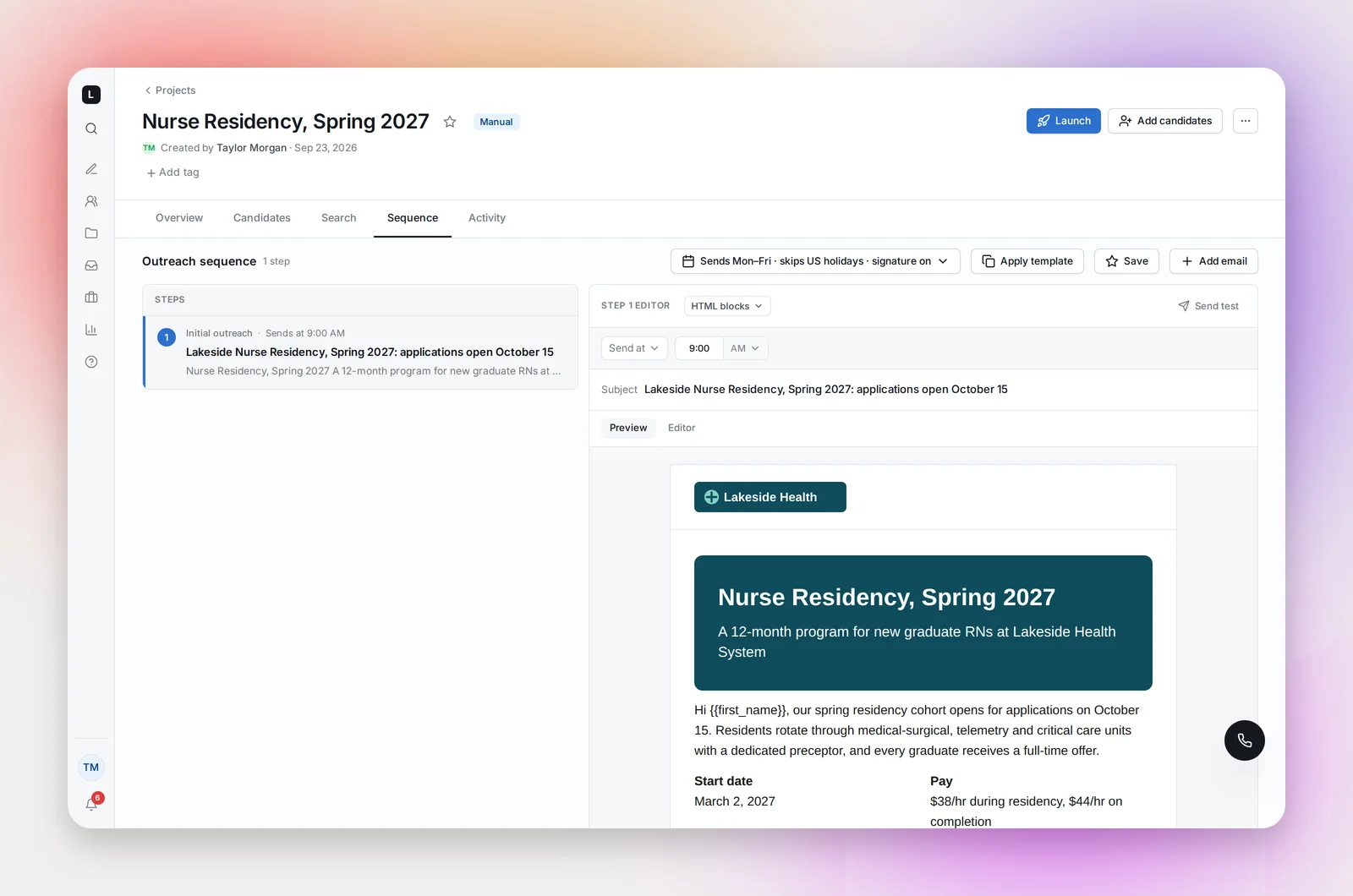
The email is a white card, 600 pixels wide: the header band with your logo (if one is set), your blocks in order, a divider and your signature, and the unsubscribe line below the card. Send test delivers exactly this to your own address with "[TEST]" in front of the subject, so you can check it in your own mail client and on your phone before launching.
Before launch
Launch checks every blocks step and tells you what to fix: a button with no destination, an image block with no image, an empty text block, a banner with neither headline nor background image, or a step with no blocks at all.
After launch the layout is locked along with the format. To change a launched blocks email, use Duplicate project… (project header menu or the Projects page). The copy is an unlaunched draft with the same sequence, so you can edit the layout there. See Duplicating a Project.
Frequently asked questions
Can the agent write a blocks email for me?
The agent drafts in plain text. Switch the step to HTML blocks and the draft becomes Text blocks you can build on: add a banner above, a button below.
Can I reuse a blocks email across projects?
Yes. Save the sequence as a template; the step's layout is saved with it and marked "HTML blocks" in the template list. See Sequence Templates.
Why does my image look different in some mail clients?
Some clients block images until the reader allows them. Write alt text on every image, keep the key message in a Heading or Text block rather than inside the picture, and use a solid banner colour behind any background image.
Do links in a blocks email get tracked?
Yes. Every web link, including the button, is click-tracked, and the Sequence tab shows clicks per step.