
Search in the sidebar is where you source candidates yourself, for a Manual project or to add to any project.
Searching
Type a description in the bar ("ICU RN, 5+ yrs, OH license, nights") and click Search, or build the search from the filters on the left. If the query could mean more than one role or place, you're asked which you meant. While the bar has text, the X button at its right end clears it and puts the cursor back so you can type a new one.
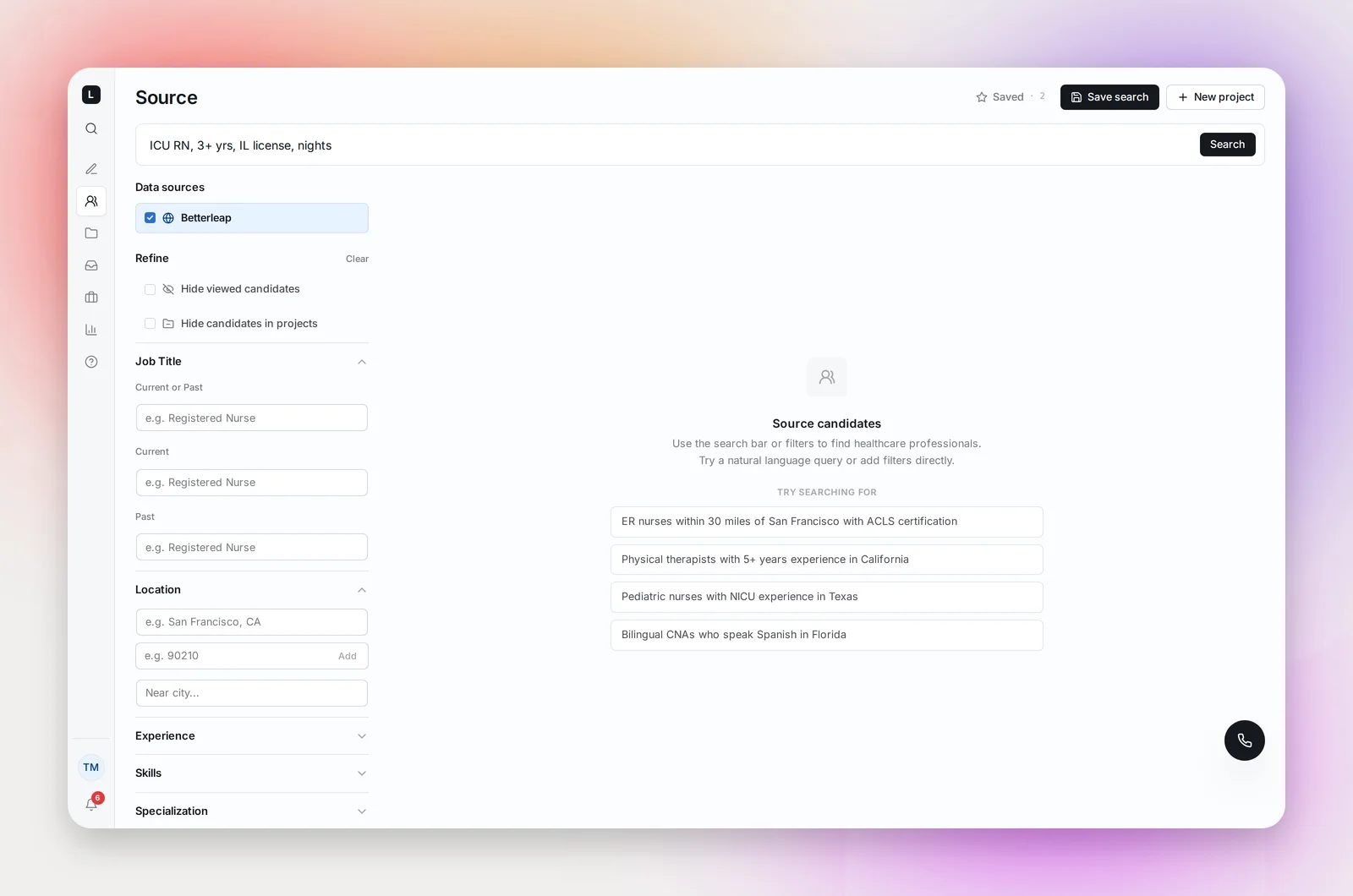
Data sources at the top of the sidebar choose between Betterleap, any partner sources, and ATS when your ATS is connected. Refine has two switches: Hide viewed candidates and Hide candidates in projects.
Filters
Each section takes typed values that become chips; the ban icon on a chip flips it from include to exclude.
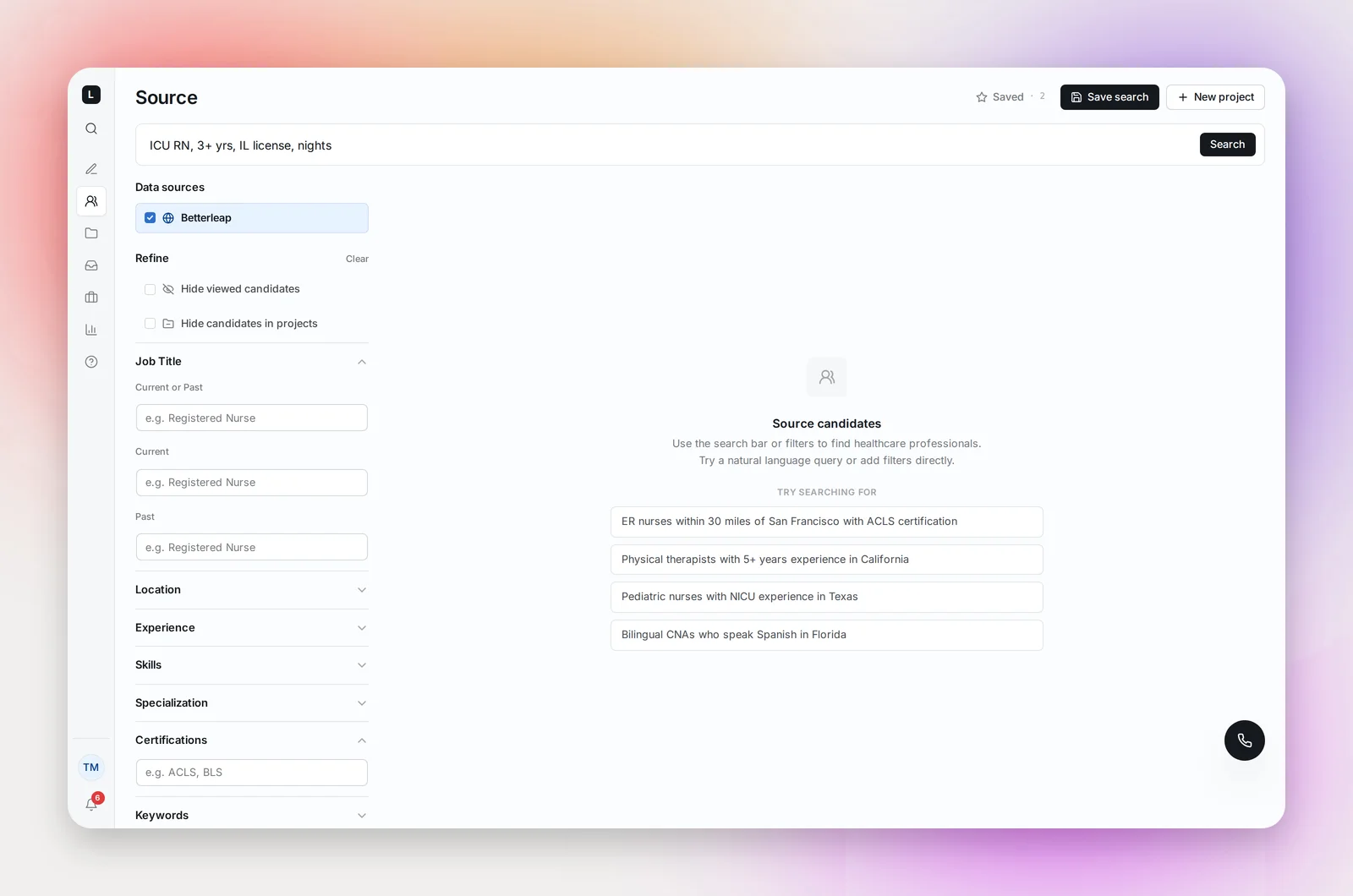
- Job Title: current or past, current only, past only, with an Exact match option
- Location: city and state, ZIP, or Near city with a radius from 5 to 100 miles (default 20)
- Experience: minimum and maximum years
- Skills, Specialization, Certifications, Keywords, each with Match: Any or All
- Company: current or past
- Education: degree, field of study, school
- Languages and Candidate Name
- Boolean Search: AND, OR, NOT, quotes and parentheses, for example
"ICU" AND "RN" NOT "travel"
Results show name, title, company and location, a source chip, an active license where known, and up to eight skills. Names drop credential and honorific words at the edges, so "Jane Doe RN" shows as "Jane Doe"; candidates from your ATS show the name exactly as your ATS has it. In N projects tells you who already has them, with the date of the last email or reply. Candidates who match but can't be contacted show "Excluded from outreach" with the reason: Do-not-contact list, Unsubscribed, or your organization's employee.
Saved searches
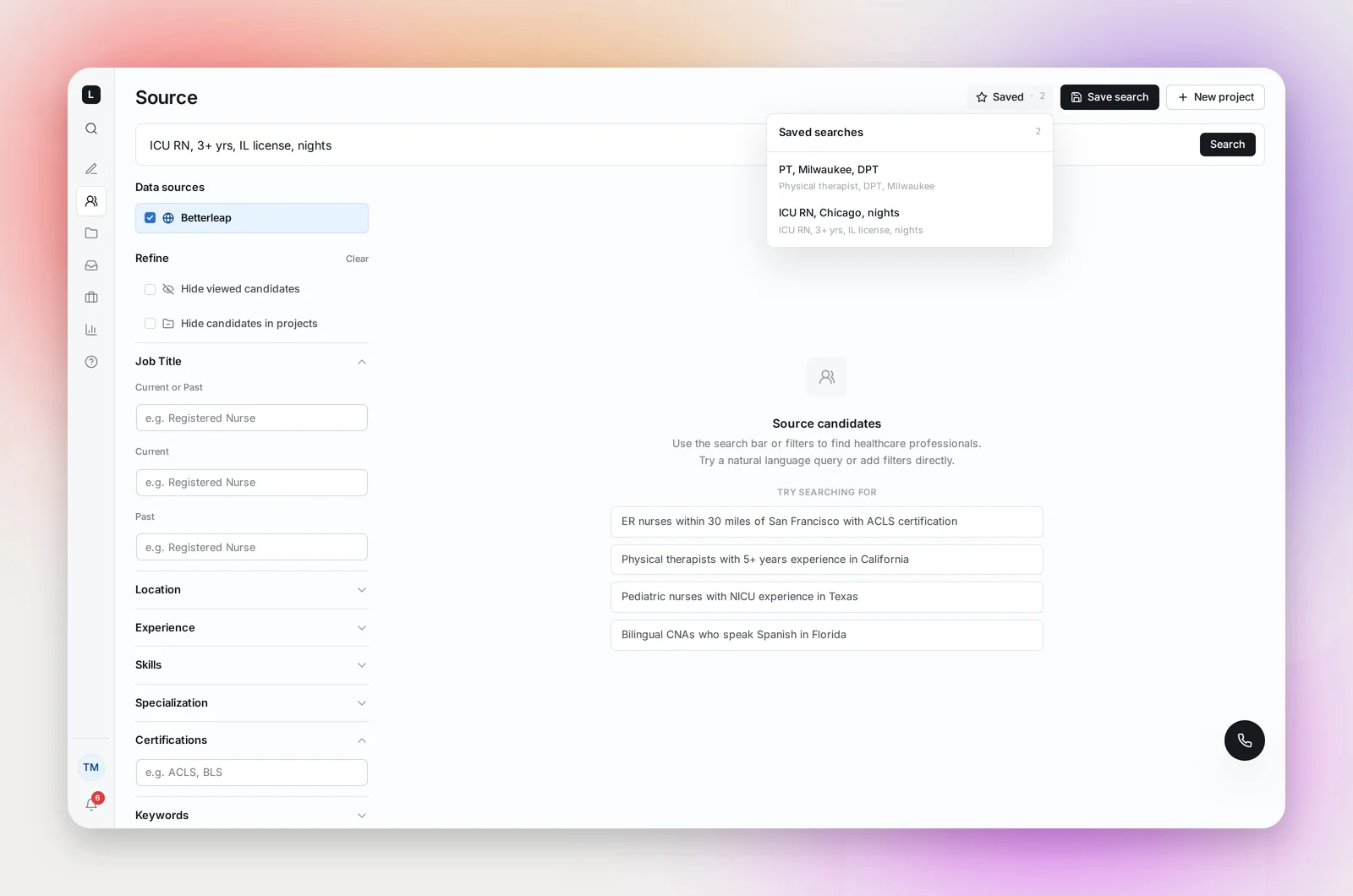
Save search stores the current query and filters; the star button lists them ("Saved · N"). Click one to run it again, rename it inline, or delete it. Saved searches are yours.
Adding candidates to a project
Use Add to project on a card, or select several and use the bulk bar. The dialog lets you search your projects or Create new project on the spot. Adding to a launched agent project enrolls the candidates in its sequence (the dialog asks you to confirm). Step 1 goes out at the sequence's next send time, so someone added after today's send time waits until the next one. See Building a Sequence.
Frequently asked questions
Why don't I see the ATS source?
It appears once your ATS is connected. See What Talent Rediscovery Is and Getting Connected.
What does the eye icon mean?
You've opened that profile before. Hide viewed candidates removes them from the results.
Can I tell you a candidate doesn't fit?
Yes: Doesn't Match on the card, with a short reason. It helps improve future results.