
Settings is where you set up how you appear to candidates, which mailboxes you send from, and how much you send per day. Open it from your profile menu at the bottom of the sidebar. The left rail groups everything under Account, Workspace, Recruiting and Outreach; this article covers the two Account pages, My profile and Email sending. Under Recruiting, Agent settings holds the cross-project contact rule and the Cool-off period (0 to 365 days); see Cross-Project Contact Rules and Sourcing Settings and The Cool-off Period Between Sequences.
My profile
Name and Work email come from the account you sign in with, so they are read-only here. Your name is used in signatures, comments and candidate-facing outreach. Two fields are yours to fill in:
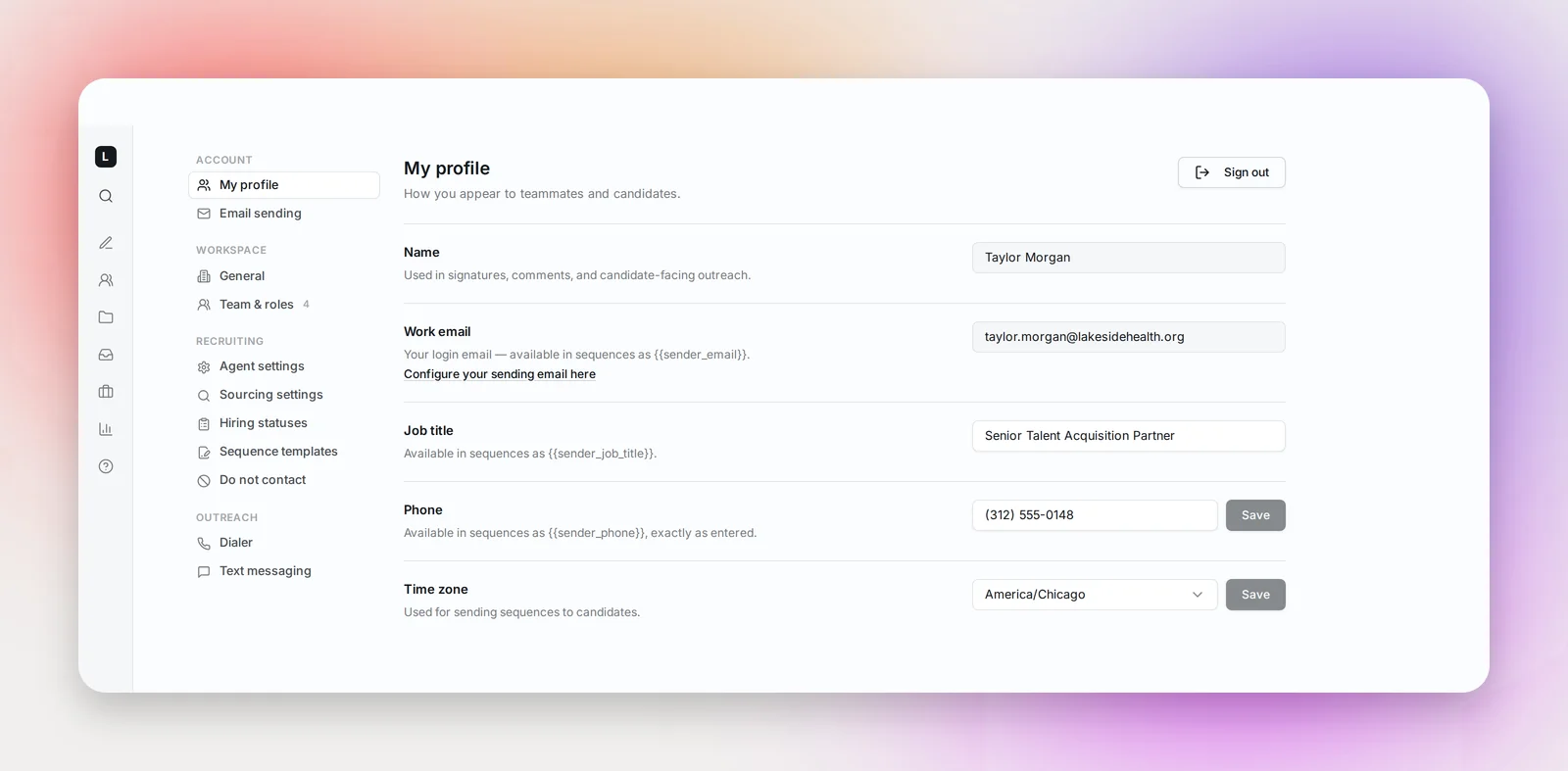
- Job title, for example "Senior Recruiter"
- Phone, entered exactly as you want it to appear in emails
Both are available as personalization variables in your sequences: {{sender_job_title}}, {{sender_phone}} and {{sender_email}} fill in from this page for every email you send. See Personalization Variables for the full list.
Click Save after editing; the button only becomes active once something has changed.
Time zone
Also on My profile. Your time zone decides when your sequences send: a step scheduled for 8:00 AM goes out at 8:00 AM in this zone, and "business days" are counted in it too. The default is US Eastern (New York); pick the zone you work in and click Save next to the field.
Email sending
Connect a mailbox
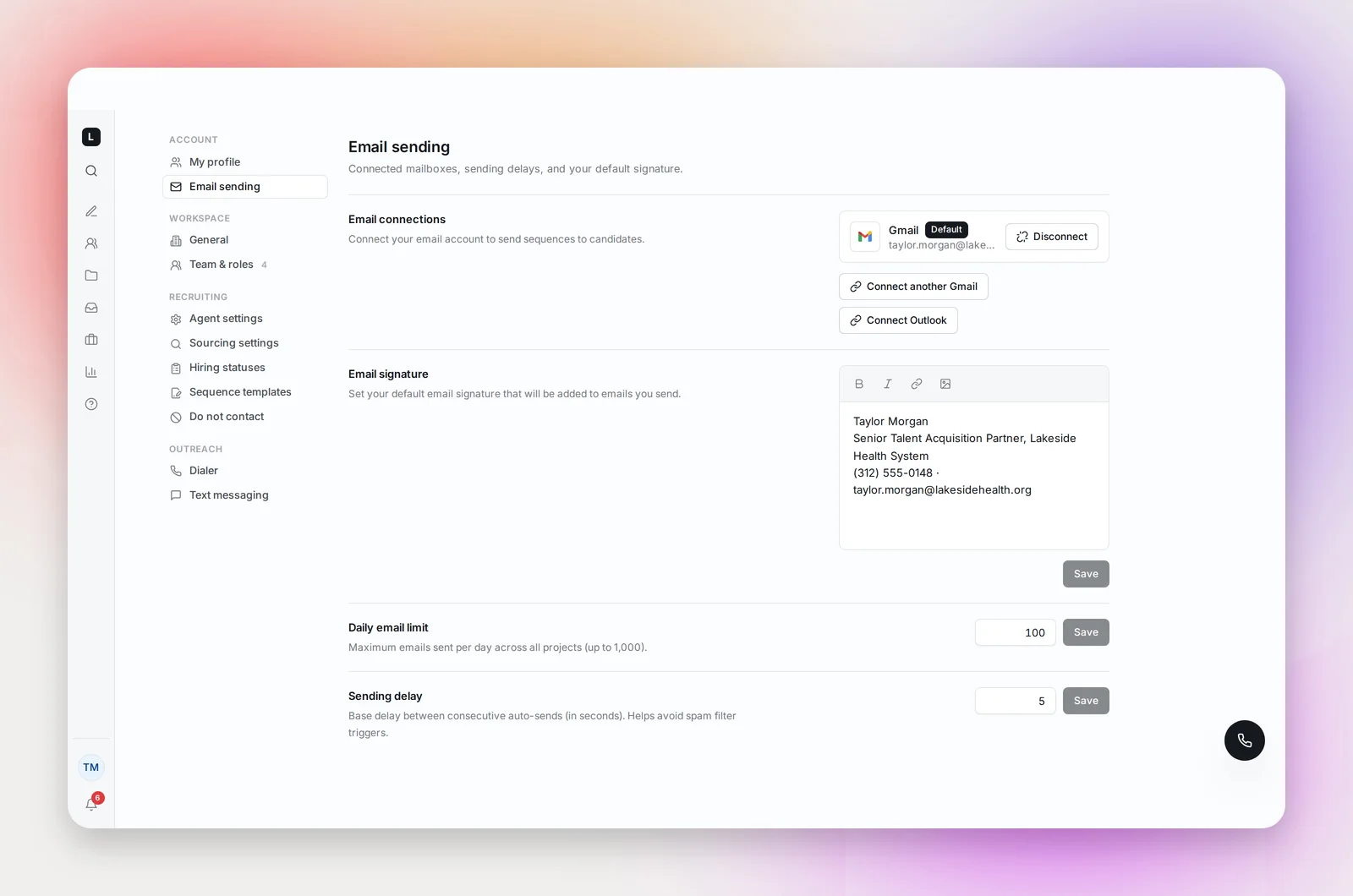
Betterleap sends outreach from your own mailbox, so candidates see your real name and address and replies land in your inbox. Under Email connections, click Connect Gmail or Connect Outlook. A window opens where you sign in with that provider and grant access; when it closes you'll see "Email Connected" and the mailbox appears as a card with its address.
Default mailbox, errors and pauses
Each mailbox card carries a badge:
- Default: the mailbox your projects send from. You can connect more than one mailbox (Connect another Gmail, Connect another Outlook); every other card has a Set as default button, and new projects send from the default unless they pick another.
- Error: the connection needs re-authorizing. Click Retry to sign in again; this is usually all it takes.
- Paused: sending from this mailbox is temporarily stopped, with the reason shown on the card. Click Resume sending when you're ready.
Disconnect removes the mailbox immediately, without a confirmation step. Projects that sent from it stop until you connect a mailbox again or set another connected mailbox as the default.
Daily email limit
Daily email limit is the maximum number of emails you send per day across all your projects, up to 1,000. The default is 100. This is the single most important deliverability setting; see Deliverability Basics for how to choose a number. With more than one mailbox connected, each card also takes an optional daily limit for that sender; leave it empty to use only the account limit. Sender limits add up under your daily email limit.
Sending delay
Sending delay is the base pause between consecutive automatic sends, in seconds (0 to 300, default 5). It applies to everyone in the workspace and helps your sends look like a person rather than a burst.
Email signature
Your Email signature is added to the emails you send. The editor supports bold, italic, links and images. Keep it short, three or four lines, with a direct phone number so candidates can reach you. Click Save.
Frequently asked questions
Can I change my name or email address?
Both come from the account you sign in with (Google, Microsoft or your email login), so they can't be edited in Settings. If you need a different work email, sign in with that account; ask your admin if it needs to join your workspace.
Which mailbox does a project use?
Your default mailbox, unless the project picks another sender or rotates across your mailboxes. Sequence steps always send from one of your own mailboxes, never from a Betterleap address.
What happens to my projects if I disconnect my mailbox?
Projects that sent from it stop. If it was your only mailbox, connect one again; if you have others, set one as the default. The projects then pick up where they left off.
Do I need to reconnect after changing my email password?
Sometimes. If a mailbox shows Error, click Retry and sign in again.