
The sidebar
- New project: the home screen, where every project starts.
- Search: source candidates with filters and boolean search. See Search.
- Projects: every project in your workspace, yours and your teammates', as a table or grid. See The Projects Page.
- Inbox: your calls, with the dialer and AI call summaries. See Dialer Setup and Making Calls.
- Jobs: your job postings and their applicants. See Posting and Editing a Job.
- Insights: workspace-wide performance, for Admins. See Insights and PDF Export.
Click your name at the bottom of the sidebar for Settings, Help Center and Sign out.
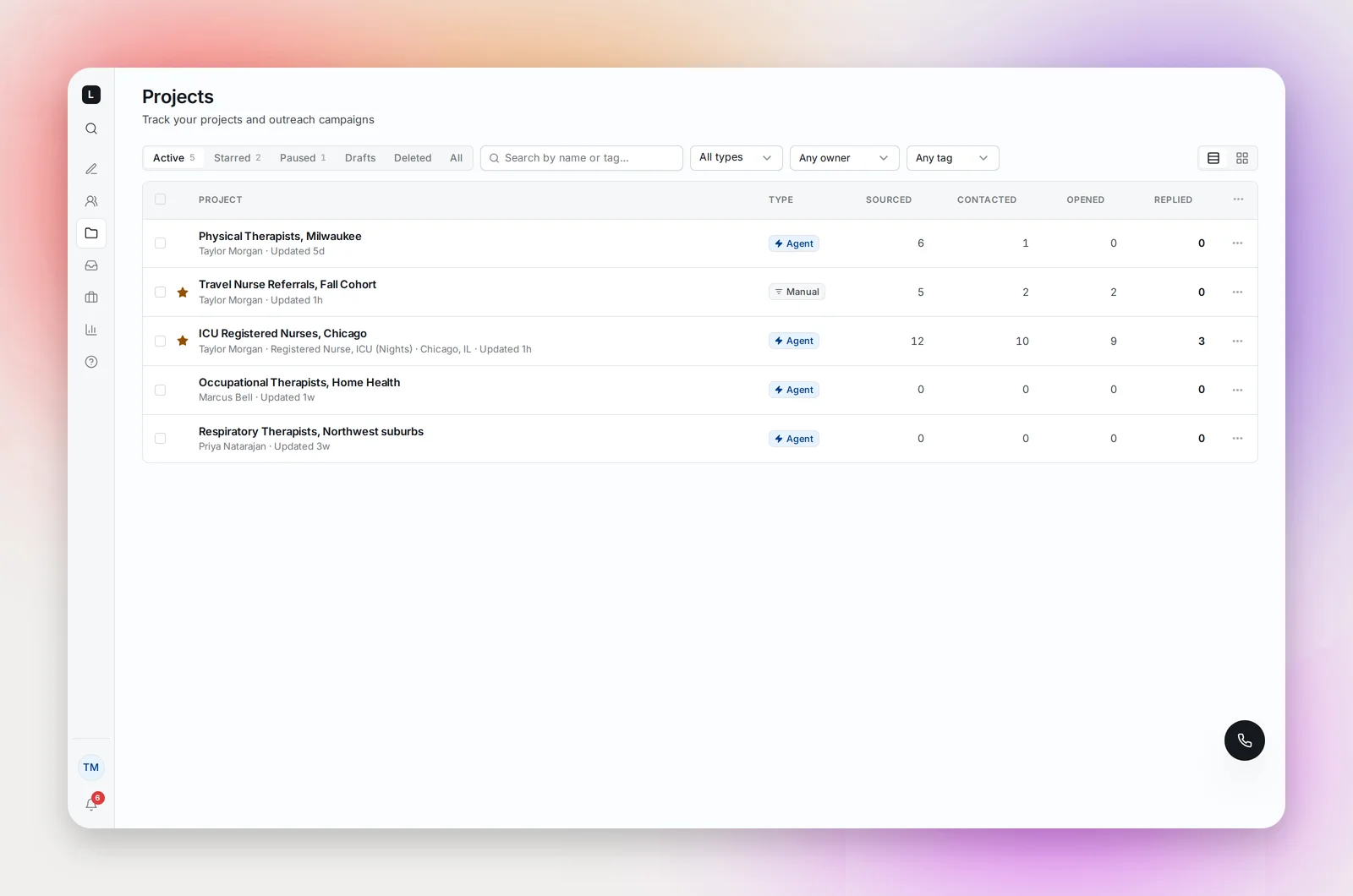
Starred sits between the navigation and the bottom of the sidebar: the projects you've starred, with a status dot and the name. Hover a row and click × to unstar. Star a project from its page header or from the Projects page.
Collapse the sidebar with the arrow at its top to get more room for a candidates table.
The command menu
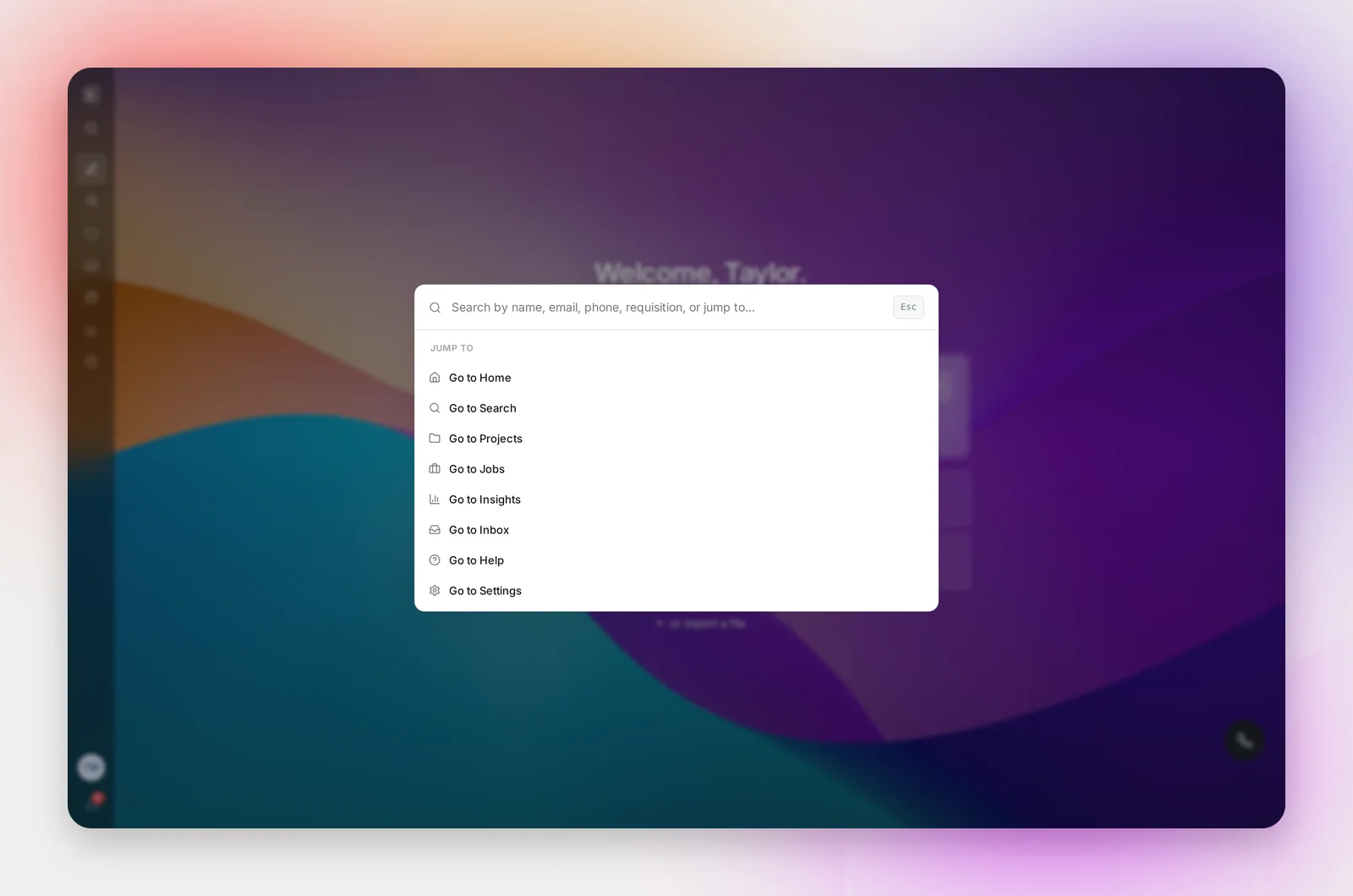
Press ⌘K (Ctrl+K on Windows) anywhere. Type a candidate's name, email, phone or requisition, a project name, or "Go to Settings", "Go to Projects" and so on.
Notifications
The bell shows a badge with your unread count. Open it to see:
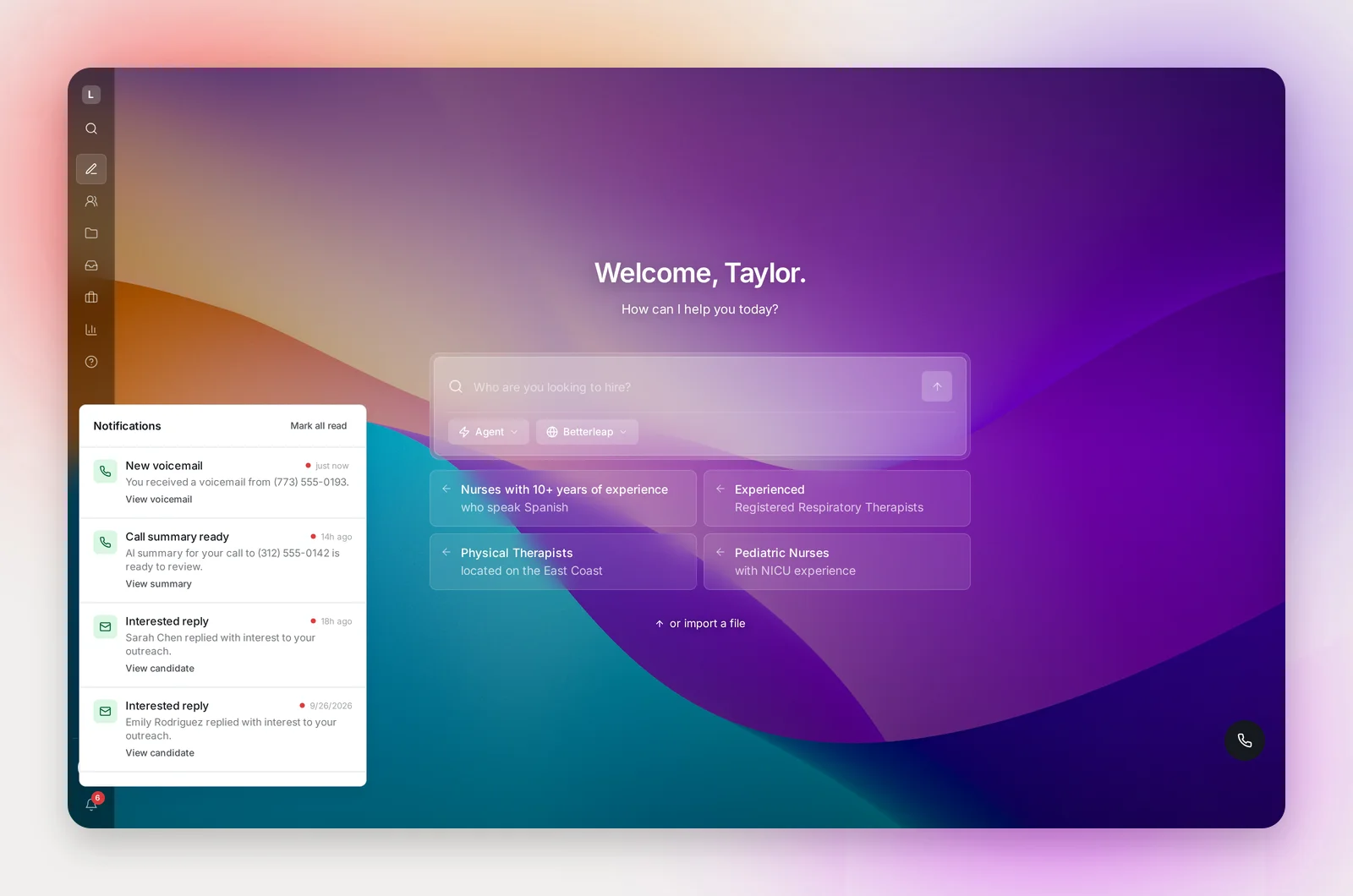
- Interested reply and Not interested: a candidate answered your outreach; "View candidate" opens them in the project.
- Call summary ready, New voicemail and missed inbound calls, opening the call in your Inbox.
- Sending temporarily paused when a mailbox needs attention, with a link to Settings.
- Import complete or CSV import failed for file imports.
Clicking a notification opens the item and marks it read; Mark all read clears the badge.
Frequently asked questions
Can I see my teammates' projects?
Yes. Projects shows every project in the workspace; filter by owner to see one person's.
Why don't I see Inbox or Jobs?
They appear when your workspace has those capabilities. Ask your account manager if you'd like them enabled.